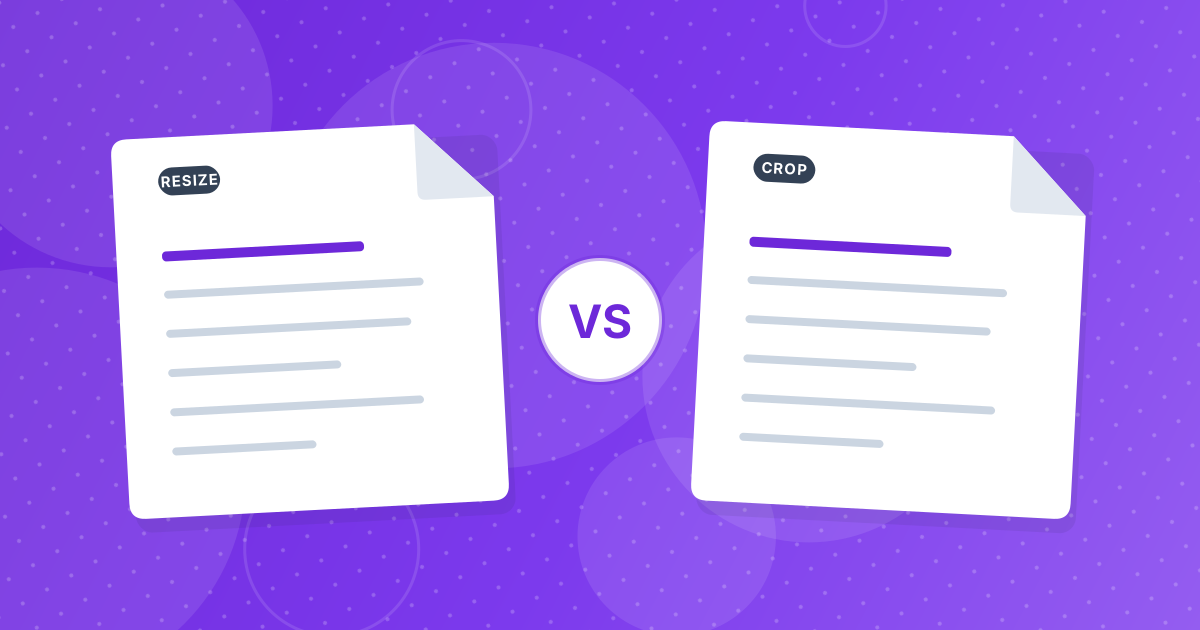
Resize changes how many pixels the picture has. Compress changes how the file stores them. Crop removes parts of the picture. All three can reduce file size, but they do different jobs.
The right order is usually crop first, resize next and compress last.
On this page
Key takeaways
- Crop changes what is in the frame.
- Resize changes the pixel dimensions while keeping the whole picture.
- Compress keeps the dimensions and lowers the storage cost with some loss of detail.
- Apply them in the order crop, resize, compress, always from the original.
The three operations compared
| Crop | Resize | Compress | |
|---|---|---|---|
| What changes | The frame | The pixel dimensions | The way pixels are stored |
| Composition | Different | Same | Same |
| Dimensions | Smaller | Smaller | Same |
| Detail | Kept inside the crop | Reduced | Reduced |
| File size | Smaller | Much smaller | Smaller |
| Use it to | Remove clutter or set a shape | Fit a display or limit | Trim the file weight |
Crop: change the picture
Crop Image cuts away edges or sets a shape such as a square. Use it when part of the picture does not belong or the destination needs a specific ratio. Cropping does not blur what remains; the explanation is in does cropping reduce image quality.
Resize: change the scale
Resize Image brings the longest side down to 480, 720, 1080, 1920 or 3840 pixels. The whole picture stays, just smaller. It is the most effective way to cut file size, because the number of pixels falls with the square of the scale.
Compress: change the storage
Image Compressor keeps the pixel dimensions and re-saves the file with stronger compression, at low, medium or high quality in JPG or WebP. It is the finishing step when the file is still heavier than you want.
The best order
- Crop to remove what you do not need and set the shape.
- Resize to the size where the picture will be shown.
- Compress to trim the remaining weight.
- Check the result and keep the original.
Doing it in this order avoids spending bits on pixels that you throw away later. Every step starts from the previous output, so keep all three settings reasonable rather than extreme.
Which one do I need?
| Goal | Use |
|---|---|
| Remove an unwanted area | Crop |
| Make a square or 16:9 image | Crop |
| Fit a pixel size or screen | Resize |
| Get under an upload limit | Resize, then compress |
| Shrink a file without changing its size on screen | Compress |
For practical limits, see images under an email or upload limit. The steps for resizing are in how to resize an image.
A worked example
You have a 6 MB phone photo of a product on a cluttered desk, and a shop page that wants a square image under 300 KB. Crop with the 1:1 ratio to remove the clutter and set the shape. Resize to 1080 pixels, which takes most of the weight off. Compress at medium to bring it under the limit. Three short steps, each doing the one thing it is best at.
Resize, compress and crop: FAQ
What is the difference between resizing and cropping?
Resizing scales the whole picture. Cropping removes parts of it.
Which reduces file size the most?
Resizing, since the number of pixels falls quickly.
Does compressing change the dimensions?
No.
In what order should I use them?
Crop, then resize, then compress.
Does cropping make an image blurry?
No. The remaining pixels are kept as they were.
Can I undo them?
Not on the saved copies. Keep the original.
Do I need all three?
No. Use only what the job needs.
Is anything uploaded?
No. All three tools run in your browser.
Right tool, right order
Crop what you do not need, resize to fit and compress what remains.