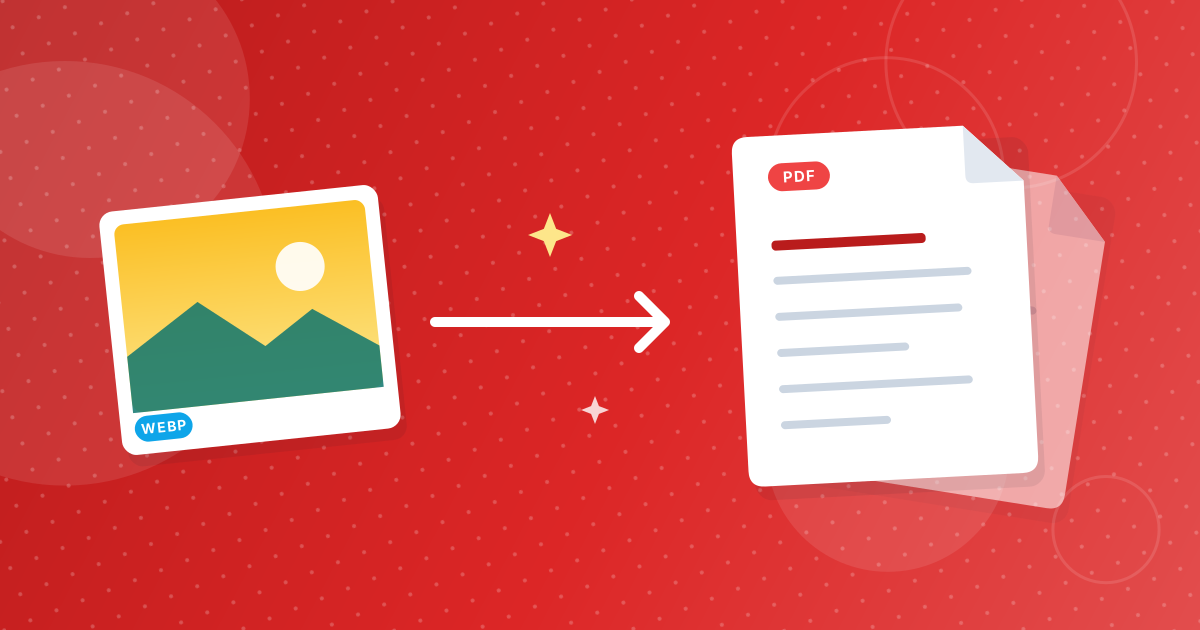
To convert WebP to PDF, add your .webp files to the WebP to PDF converter and download the PDF. Every image becomes one A4 page in a single document, turned to portrait or landscape to match the picture and scaled to fit without cropping.
WebP is the format most websites now serve images in, so files you save from a browser often end in .webp. Many printers, office apps and upload forms still prefer PDF. Here is how the conversion works.
On this page
Key takeaways
- All selected WebP images are combined into one PDF, one image per A4 page.
- Each page is portrait or landscape to match its image.
- Transparent areas become white, since PDF pages print on white paper.
- Conversion runs in your browser; nothing is uploaded.
Steps shown in the video
- Click Choose WebP Files and select your WebP images
- Each file is listed with a preview and its size
- Click Convert to PDF
- Download one PDF with every image
How to convert WebP to PDF in three steps
- 1
Add your WebP images. Open the WebP to PDF tool and drag in your .webp files. Previews appear so you can check them.
- 2
Set the order. The first image in the list becomes page one.
- 3
Convert and download. Click Convert and save the PDF.
How is each page laid out?
| Image | Page |
|---|---|
| Taller than wide | Portrait A4 |
| Wider than tall | Landscape A4 |
| Any size | Scaled to fit, centred, never cropped |
| Transparent background | Filled with white |
Images are stored in the PDF as high-quality JPEG, which keeps the document compact. Very small images, such as icons, are enlarged to fit the page and may look soft; they suit a PDF best when they are at least a few hundred pixels wide.
Where do WebP files come from?
When you right-click an image on a website and choose Save image as, the browser saves it in the format the site served, and that is often WebP. Product photos, infographics, recipes and screenshots from online shops and blogs all tend to arrive this way.
To print them, read how to print WebP images. For phone and desktop steps, see WebP to PDF on any device.
Related tools
- Need an image instead of a PDF? Use WebP to JPG or WebP to PNG.
- Add other documents with Merge PDF.
- Shrink a large PDF with Compress PDF.
Getting a sharp PDF from web images
Images saved from websites are often sized for the screen, not for paper. A 600-pixel-wide image stretched across an A4 page looks soft. Look for a larger version before converting, or accept a smaller image on the page. As a rule of thumb, about 1,200 pixels across is enough for a sharp full-width A4 print at normal reading distance.
If you mainly want to print the images, how to print WebP images compares printing from the browser with printing a PDF.
WebP to PDF: frequently asked questions
How do I convert WebP to PDF?
Add the WebP files to the WebP to PDF converter, set the order, click Convert and download the PDF.
Can I put several WebP images in one PDF?
Yes. Every image becomes one page in the same PDF.
What happens to transparent WebP images?
Transparent areas become white in the PDF.
What page size is used?
A4, in portrait or landscape to match each image.
Are my images uploaded?
No. The PDF is created in your browser.
Why do my WebP images look blurry in the PDF?
They are small images enlarged to fit the page. Use larger versions of the images if possible.
Can I convert WebP to PDF on a phone?
Yes. Open the tool in your mobile browser and pick the images.
Web images, ready to print and share
Converting WebP to PDF turns images saved from the web into a document that prints and uploads anywhere. Order them, convert, and you are done.