To get an image under a size limit, resize it first and compress it second. Cutting the dimensions removes far more bytes than lowering quality does, and it hurts the look less.
Below is a method that works for email attachments, application forms and web uploads.
On this page
Key takeaways
- Resize to the size the picture will actually be shown at.
- Compress at medium, then step down only if needed.
- Many email services limit attachments to around 20 to 25 MB in total, and forms often set much smaller limits, so check the exact figure.
- Keep the original and send the reduced copy.
Step 1: Know the limit
Look for the number on the form or in the email service's help page. Limits can apply per file or per message, so ten photos at 4 MB each may exceed a 25 MB message limit. Aim for a margin under the limit, since the message adds a little overhead.
Step 2: Resize
A phone photo is often 4000 pixels or more across, far beyond what a screen or form needs. Resize Image limits the longest side to 480, 720, 1080, 1920 or 3840 pixels and never enlarges a smaller picture.
| Longest side | Suits |
|---|---|
| 1920 px | Sharp viewing on a full-HD screen; email photos |
| 1080 px | Social posts and web pages |
| 720 px | Small previews and forum posts |
| 480 px | Thumbnails |
Step 3: Compress
Run the resized files through the Image Compressor at medium. A photo at 1920 pixels and medium quality often comes out at a few hundred kilobytes. If a form needs less, choose low, or choose WebP when the form accepts it.
Step 4: Check the size
Look at the file size in your file manager. If it is still too big, go back and either resize to the next smaller preset or lower the quality. Change one setting at a time so that you can see which one helped.
- Original saved elsewhere.
- Dimensions match the use.
- File size is below the limit with a margin.
- The picture still looks clear at normal size.
- File type is accepted by the form (JPG is safest).
Many photos in one message
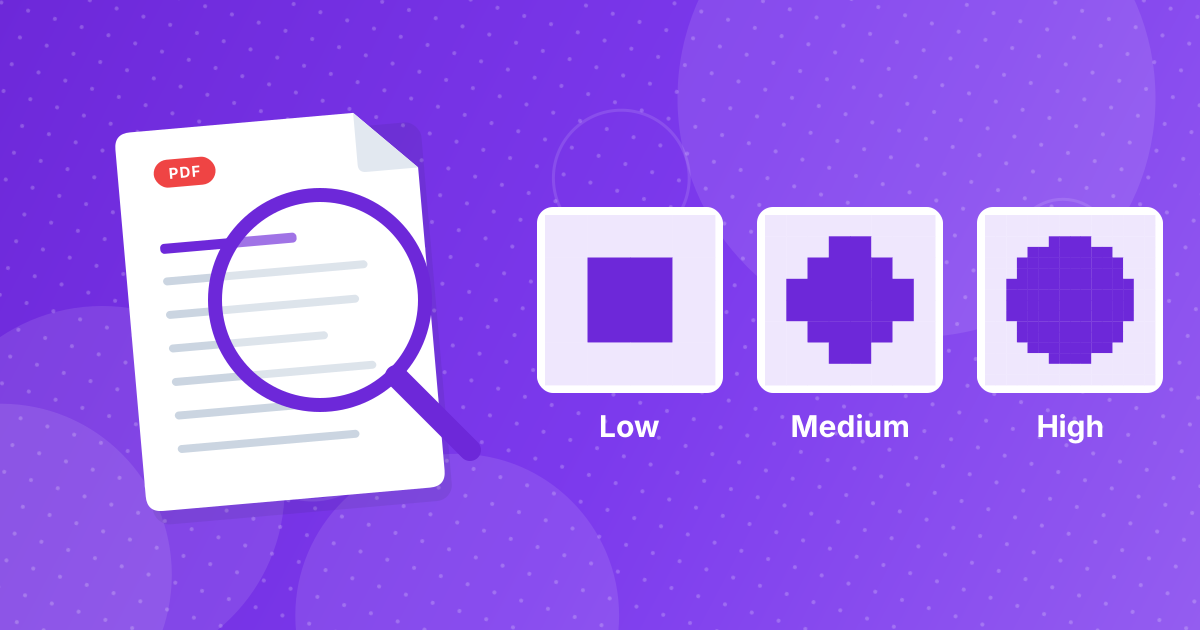
Process them all at once and download the ZIP. If the total is still too large, split them into two messages, or combine them into a single document with JPG to PDF and reduce that with Compress PDF. The explanation of the quality levels is in compression quality levels.
Upload forms with strict limits
Government and job application forms often set small limits such as 100 KB to 2 MB per file and may require JPG. For those, resize to 1080 pixels, compress at medium to low in JPG, check the size and repeat at the next smaller preset until it fits. Keep the picture readable at normal size; an unreadable scan is rejected just as surely as an oversized one.
Image size limits: FAQ
How do I make a photo smaller for email?
Resize its longest side to 1920 pixels, then compress at medium.
Why resize before compressing?
Fewer pixels remove far more data than lowering quality, and the picture looks better.
What size should a photo be for a form?
Check the form's rules. 1080 to 1920 pixels is common.
Which format is safest for uploads?
JPG. Many forms do not accept WebP.
Can I compress several photos at once?
Yes. Download them as a ZIP.
Why is my image still too large?
Try the next smaller resize preset or a lower quality level.
Do I need to keep the original?
Yes. Reduced files cannot be restored to full quality.
Does it work on a phone?
Yes, in any modern mobile browser.
Resize, compress, check
Follow that order, change one setting at a time and keep the original.