To compress an image, open the Image Compressor, add your pictures, choose a quality level and an output format, and click compress. The tool re-saves each picture with stronger compression so that the file is smaller.
It runs in your browser, so images are never uploaded.
On this page
Key takeaways
- Three quality levels are offered: low, medium (the default) and high.
- Output is JPG or WebP. PNG, GIF, BMP and AVIF inputs are re-saved in one of those two formats.
- Dimensions stay the same; only the compression changes.
- Several images come together as a ZIP named compressed-images.
How to compress an image in three steps
- 1
Add your images. Open the Image Compressor and drag in your files.
- 2
Choose quality and format. Open the settings panel. Medium is selected by default and suits most uses. JPG is the default format, WebP gives smaller files.
- 3
Compress and download. One image downloads directly. Several come as a ZIP.
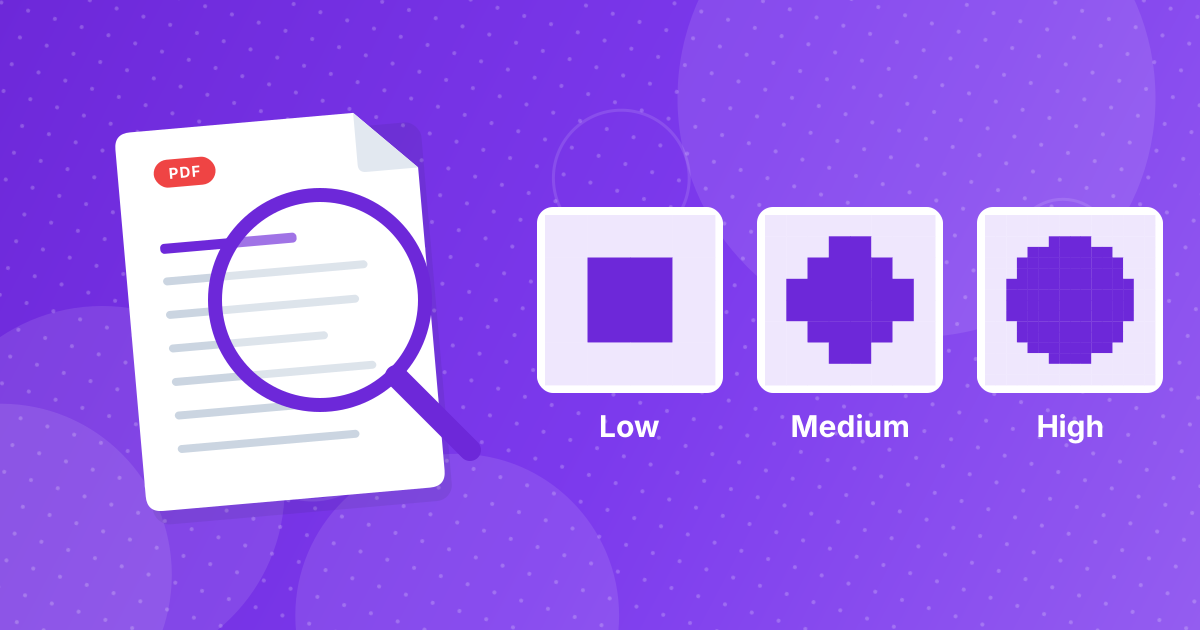
The quality levels
| Level | Quality value | Best for |
|---|---|---|
| Low | 55 percent | Thumbnails, previews and the smallest files |
| Medium | 72 percent | Everyday sharing, email and web pages |
| High | 88 percent | Photos you want to keep looking their best |
A full comparison of the levels and the two formats is in compression quality levels, JPG vs WebP.
What happens to different input formats
- JPG stays a JPG, or becomes WebP if you choose that.
- PNG becomes JPG (transparent areas turn white) or WebP (transparency is kept).
- GIF, BMP and AVIF become JPG or WebP. Animated GIFs keep only the first frame.
- HEIC, TIFF and SVG are not accepted. Convert them first with HEIC to JPG or TIFF to JPG.
Getting the smallest file that still looks good
- Shrink the dimensions first with Resize Image. A 4000-pixel photo shown at 800 pixels wastes bytes.
- Compress once, at medium, and compare the result at normal zoom.
- Try WebP if the destination supports it.
For specific limits such as email or an upload form, see compressing images for email and upload limits.
Keep your originals
Compression discards detail that cannot be recovered, and the tool does not check whether the result is smaller. An image that was already well compressed might not shrink, and small flat-color PNGs can even grow when saved as JPG. Compare file sizes and keep the original.
Compressing a whole folder
Select all the images and drop them in together. They are compressed one after another with the same settings and returned as a ZIP named compressed-images. The files keep their names, with a .jpg or .webp extension according to the output you chose. Compare the sizes in your file manager before deleting the originals.
Image compression: FAQ
How do I compress an image?
Add it to the Image Compressor, choose a quality level and format, and click compress.
Is my image uploaded?
No. Compression happens in your browser.
Which quality should I choose?
Medium for most uses. Low for the smallest files, high to keep more detail.
Should I use JPG or WebP?
WebP is smaller and keeps transparency. JPG opens everywhere.
Does compression change the dimensions?
No. Use Resize Image to change the width and height.
What happens to PNG transparency?
With JPG output it becomes white. With WebP it is kept.
Can I compress many images at once?
Yes. They download as a ZIP.
Which formats are accepted?
JPG, PNG, WebP, GIF, BMP and AVIF.
Can the result be larger than the original?
Yes, in some cases such as small graphics. Compare sizes and keep the smaller file.
Is compressing the same as resizing?
No. Compression keeps the width and height and changes how the file is stored. Resizing changes the number of pixels.
Can I compress a screenshot?
Yes. Use high quality for screenshots with text, or keep the PNG if sharpness matters more than size.
Lighter images, same size on screen
Resize if you can, compress at medium and check the result. Keep the originals.