To convert AVIF to PNG, add your .avif files to the AVIF to PNG converter and download the PNGs. Transparent areas stay transparent, the image keeps its dimensions, and the PNG opens in editors and apps that do not understand AVIF.
Your browser decodes the AVIF, so use a current version of Chrome, Edge, Firefox or Safari.
On this page
Key takeaways
- Transparency is preserved, unlike AVIF to JPG.
- PNG is lossless, so no further detail is lost.
- The PNG is usually larger than the AVIF.
- Several files download together as a ZIP.
Steps shown in the video
- Click Choose AVIF Files and select your AVIF images
- Each file is listed with a preview and its size
- Click Convert to PNG
- Download your PNGs (several come as one ZIP)
How to convert AVIF to PNG in three steps
- 1
Add your AVIF files. Open the AVIF to PNG tool and drag in .avif images.
- 2
Convert. Click Convert. The image is decoded by your browser and saved as PNG.
- 3
Download. Save the PNG or the ZIP archive.
Why choose PNG over JPG?
PNG keeps transparency and sharp edges, which matters for logos, stickers, icons and screenshots. JPG fills transparent areas with white and is better only for photos. The choice is explained in AVIF to PNG or JPG; for photos, AVIF to JPG gives smaller files.
How transparency carries over
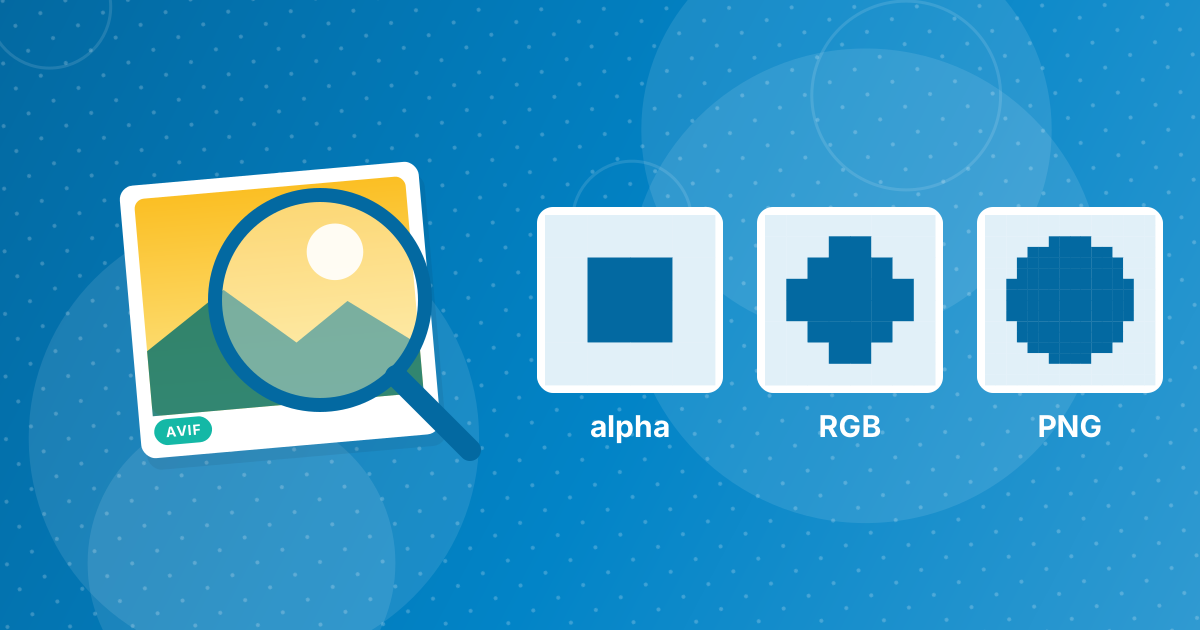
AVIF supports a full alpha channel, so edges can be partly transparent, as with soft shadows. PNG stores that alpha channel exactly. More on this in AVIF transparency and PNG.
When AVIF to PNG is the right choice
- Stickers, cut-out product photos and logos with transparent backgrounds.
- Editing in an app that does not support AVIF, without adding JPG compression.
- Documents and slides, where PNG is accepted everywhere.
- Screenshots or graphics with text that must stay sharp.
Keeping PNG files manageable
PNG files are often several times larger than the AVIF originals, especially for photos. If the image is for a website, consider keeping it as AVIF or WebP. If you need PNG but the file is too big, reduce its dimensions with the Image Resizer; halving width and height cuts the pixel count by three quarters.
For photos without transparency, AVIF to JPG gives much smaller files.
Browser requirements
The conversion uses your browser's own AVIF decoder. Chrome 85 and later, Firefox 93 and later, Safari 16 and later and Edge 121 and later can decode AVIF. If the preview stays blank or the conversion fails, update your browser or try another one. On older iPhones and Macs that cannot be updated to Safari 16, use Chrome or Firefox if available.
AVIF to PNG: FAQ
How do I convert AVIF to PNG?
Add the AVIF to the AVIF to PNG converter, click Convert and download the PNG.
Does AVIF to PNG keep transparency?
Yes. The alpha channel is kept in the PNG.
Why is the PNG bigger than the AVIF?
AVIF compresses far more efficiently; PNG is lossless.
What browser do I need?
A current Chrome, Edge, Firefox or Safari, which can decode AVIF.
Are my images uploaded?
No. Conversion runs in your browser.
Can I convert animated AVIF to PNG?
Only the first frame is saved, as PNG holds a single still image.
Does the PNG keep the original size?
Yes, the dimensions are unchanged.
Is AVIF to PNG lossless?
PNG stores the decoded image without further loss, though it cannot restore detail the AVIF compression removed.
Can I convert AVIF to PNG on Windows without extensions?
Yes. The browser decodes AVIF, so no Windows extension is needed.
Will the PNG work in Photoshop and Canva?
Yes. PNG is supported by every major editor and design tool, including Photoshop, GIMP, Canva and Figma, with transparency intact.
Compatible and transparent
AVIF to PNG gives you an image that every editor opens, with its transparency intact.