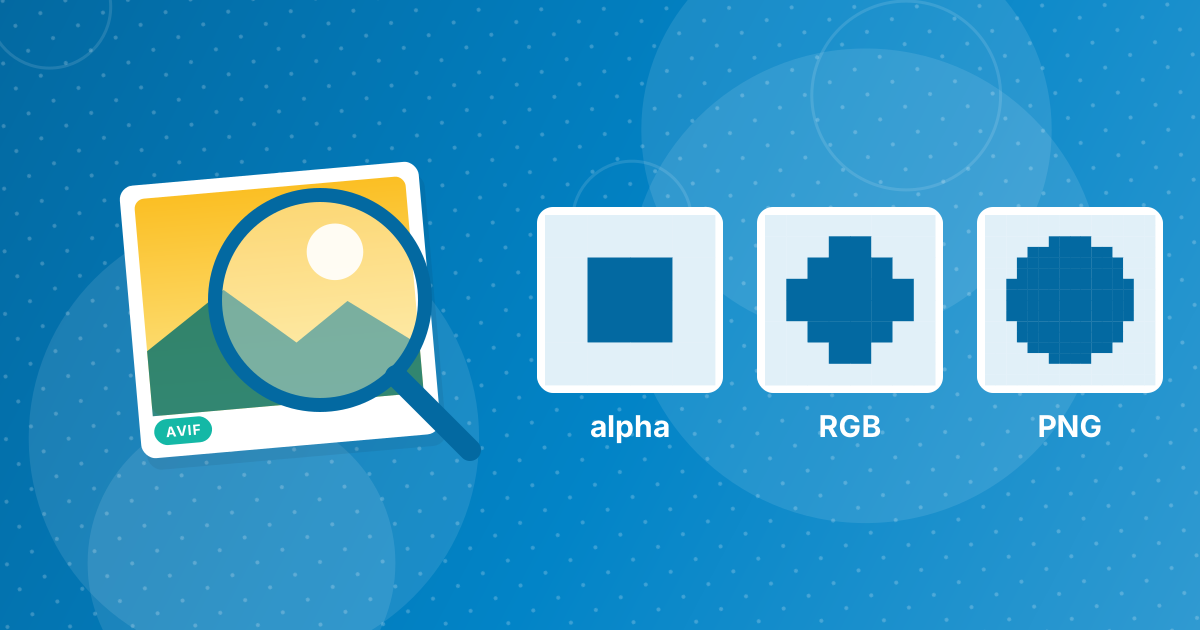
AVIF stores transparency as a separate alpha channel, so each pixel can be fully, partly or not at all transparent. PNG, WebP and GIF can keep transparency when you convert, though GIF only as on or off. JPG cannot, so converters fill the transparent areas with a colour, usually white.
This explainer covers how alpha works and how to keep it.
On this page
Key takeaways
- Alpha lets edges and shadows be partly transparent.
- PNG and WebP keep full alpha; GIF keeps only on/off transparency.
- JPG has no alpha, so transparent areas become white (or black in careless tools).
- For logos and stickers, convert AVIF to PNG.
Steps shown in the video
- Click Choose AVIF Files and select your AVIF images
- Each file is listed with a preview and its size
- Click Convert to PNG
- Download your PNGs (several come as one ZIP)
What is an alpha channel?
Besides red, green and blue, each pixel can have an alpha value from fully transparent to fully opaque. Values in between create soft edges, glows and shadows that blend with any background.
Which formats keep it?
| Format | Transparency |
|---|---|
| PNG | Full alpha |
| WebP | Full alpha |
| GIF | On or off per pixel only |
| JPG | None |
| PDF page | Shown on white paper |
Why do some conversions turn black?
Transparent pixels often carry black colour values. A tool that drops alpha without filling a background shows that black. Our converters fill with white when the target cannot be transparent, and keep alpha when it can. Use AVIF to PNG to keep it; see how to convert AVIF to PNG. For photos without transparency, AVIF to JPG is smaller.
How to check if an AVIF has transparency
Open the image in a browser tab with a dark theme or on a coloured page: transparent areas show the background through. In an image editor, transparency appears as a grey-and-white checkerboard. After converting to PNG, the same checkerboard should appear in the same places.
Soft edges and halos
Partly transparent pixels at the edges of a cut-out carry colour from the original background. When the image is placed on a very different background, a faint light or dark fringe can appear. That comes from how the image was made, not from the conversion; cleaning the edge in an editor fixes it.
To convert while keeping the alpha channel, use AVIF to PNG. For a smaller transparent web image, PNG to WebP can follow.
Where transparent AVIFs come from
Online shops increasingly serve cut-out product photos and stickers as AVIF with transparency, because the format keeps them small. Saving such an image and converting it to PNG gives you a transparent picture you can drop onto slides, documents or designs. Remember to respect the image owner's rights.
AVIF transparency: FAQ
Does AVIF support transparency?
Yes, with a full alpha channel.
How do I keep transparency when converting AVIF?
Convert to PNG or WebP.
Why did my converted image get a black background?
The tool dropped the alpha channel without filling a background colour.
Can JPG be transparent?
No.
Does GIF keep soft edges?
No. GIF only supports fully transparent or fully opaque pixels.
Why does my cut-out have a white fringe?
The edge pixels contain colour from the original background. Clean the edge in an editor.
Does WebP keep AVIF transparency?
Yes, WebP supports a full alpha channel.
Can a PDF keep AVIF transparency?
Images in a PDF are shown on the white page, so transparent areas appear white.
How do I see transparency in an image?
Editors show it as a grey-and-white checkerboard.
Does AVIF to JPG keep transparency?
No. JPG cannot store transparency, so those areas become white. Convert to PNG or WebP to keep them see-through.
Pick a format that holds alpha
Convert transparent AVIF images to PNG or WebP to keep them see-through, and expect a solid background in JPG.