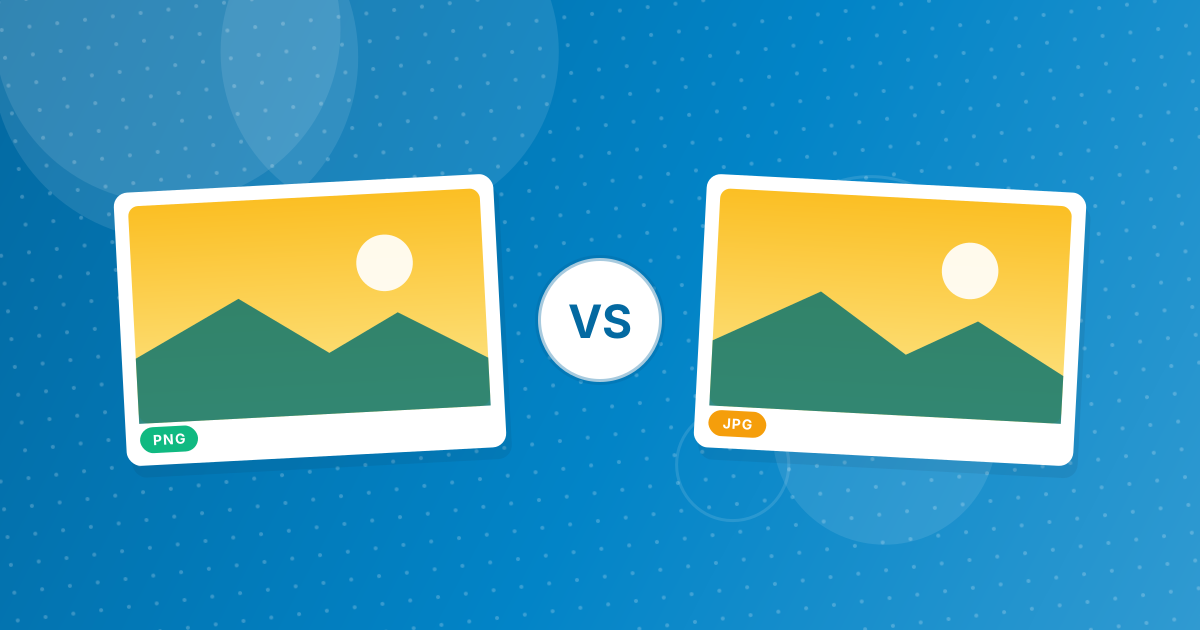
Convert AVIF to PNG when the image has transparency or sharp edges, such as logos, icons and screenshots, or when you will edit it. Convert AVIF to JPG when it is a photo you want to share or upload, because JPG files are much smaller.
A quick comparison follows.
On this page
Key takeaways
- PNG keeps transparency; JPG turns it white.
- JPG is much smaller for photos.
- PNG is lossless and best for editing.
- Both open everywhere.
Steps shown in the video
- Click Choose AVIF Files and select your AVIF images
- Each file is listed with a preview and its size
- Click Convert to PNG
- Download your PNGs (several come as one ZIP)
Comparison
| PNG | JPG | |
|---|---|---|
| Transparency | Kept | Filled with white |
| Compression | Lossless | Lossy |
| Photo file size | Large | Small |
| Best for | Logos, icons, screenshots, editing | Photos for sharing and uploads |
Quick decision
- Does the image have a transparent background? Choose PNG.
- Is it a photo for email, social media or a form? Choose JPG.
- Will you edit it several times? Choose PNG.
Use AVIF to PNG or AVIF to JPG. The PNG route is explained in how to convert AVIF to PNG.
Real examples
- A cut-out product photo for a presentation: PNG, so the background stays transparent on coloured slides.
- A holiday photo saved from a booking site: JPG, small enough to email.
- A chart or infographic with small text: PNG, to keep the text crisp.
- A profile picture for a forum: JPG, the format most upload forms expect.
- An illustration you will retouch: PNG, so repeated saves do not degrade it.
How big will the files be?
Both conversions produce larger files than the AVIF, because AVIF compresses so efficiently. For photos, the JPG is typically a fraction of the PNG's size. For flat graphics with few colours, PNG can be competitive. If size matters, convert one image both ways and compare before converting a whole batch.
Transparency is explained in detail in AVIF transparency and PNG.
If you will edit the image
Editing is where PNG earns its larger size. Every time a JPG is saved, it is compressed again and a little more detail is lost. If you will crop, retouch or add text to the image over several sessions, convert to PNG first, edit and save as often as needed, and export a JPG only at the end if you need a small file.
For quick one-off edits, such as cropping a photo once before uploading, converting straight to JPG is perfectly fine. The difference only shows after repeated saves, and only on close inspection. Background on transparency is in AVIF transparency and PNG.
If the image is going back on the web
If you only need the image on a website, consider whether you need to convert at all. AVIF is already one of the most efficient web formats and current browsers display it. Convert to PNG or JPG for editing, documents, email and services that reject AVIF, and keep or re-export a modern format such as AVIF or WebP for the web.
That way each copy is in the format that suits its destination.
AVIF to PNG or JPG: FAQ
Should I convert AVIF to PNG or JPG?
PNG for transparency and editing; JPG for photos you share.
Which keeps transparency?
PNG.
Which is smaller?
JPG, for photos.
Is PNG higher quality?
PNG is lossless; JPG at high quality looks very close for photos.
Can I do both?
Yes, convert with both tools.
Which is better for printing?
Both print well. JPG is smaller; PNG avoids any extra compression.
Why is my PNG so much bigger than the AVIF?
PNG is lossless, while AVIF uses very efficient lossy compression.
Can I convert AVIF to WebP?
Convert to PNG first, then use PNG to WebP.
Transparency decides
If the image has a transparent background, PNG; if it is a photo, JPG.