TIFF and PNG are both lossless, but they serve different jobs. TIFF supports multiple pages, CMYK colour and print workflows, which makes it a standard for scanning, publishing and archiving. PNG is built for screens: it opens in every browser and compresses well. Use TIFF for print masters and PNG for anything shown on screen.
Here is the comparison.
On this page
Key takeaways
- Both are lossless.
- TIFF supports pages, CMYK and print workflows; PNG does not.
- PNG opens in every browser; TIFF mostly does not.
- PNG files are usually smaller.
Steps shown in the video
- Click Choose TIFF Files and select your TIFF images
- Each file is listed with a preview and its size
- Click Convert to PNG
- Download your PNGs (several come as one ZIP)
TIFF vs PNG at a glance
| TIFF | PNG | |
|---|---|---|
| Compression | None or lossless | Lossless |
| Multiple pages | Yes | No |
| CMYK colour | Yes | No (RGB only) |
| Transparency | Yes | Yes |
| Browser support | Safari only | All browsers |
| Typical use | Print, scanning, archiving | Web, screenshots, graphics |
Which should you use?
- Print production and archive masters: TIFF.
- Multi-page scans: TIFF or, for sharing, PDF via TIFF to PDF.
- Websites, documentation, screenshots: PNG via TIFF to PNG.
See how to convert TIFF to PNG for the conversion steps.
File size compared
An uncompressed TIFF stores every pixel raw, so an A4 colour scan at 300 DPI is around 25 MB. TIFF can also use lossless compression such as LZW or Deflate, which brings it closer to PNG. PNG always compresses, and for scans with large white areas the savings are big. In practice, a PNG of a document scan is often a small fraction of an uncompressed TIFF.
Metadata and colour management
TIFF can carry rich metadata (EXIF, IPTC, XMP) and colour profiles, including CMYK print profiles, which is why publishing and archiving workflows rely on it. PNG supports text metadata and an embedded colour profile too, but in RGB only. For web and screen use that is all you need; for print production, keep TIFF.
What is lost when converting is detailed in TIFF to PNG: what is kept and what is lost.
Putting scans on the web
Websites cannot rely on TIFF, because Chrome, Edge and Firefox do not display it. For scanned documents and diagrams on a site, convert to PNG with TIFF to PNG to keep text sharp, or to WebP for smaller files. For photographs, TIFF to JPG is the lightest option. Keep the TIFFs as masters in your archive.
The short answer
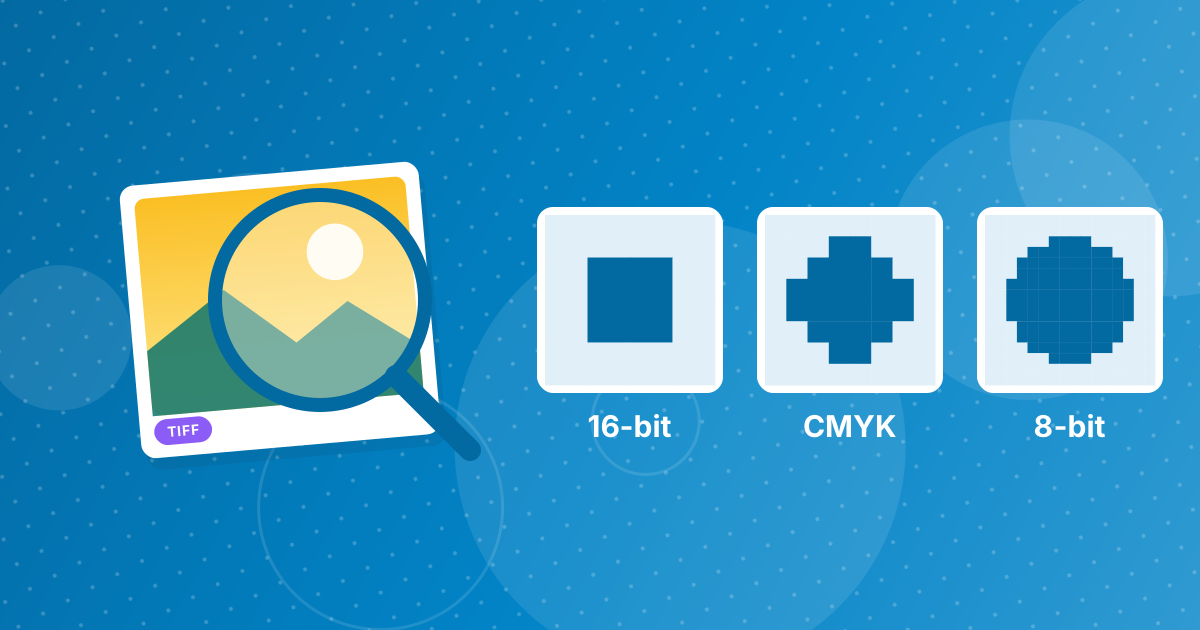
Use TIFF when a print shop, archive or imaging system asks for it, or when you need CMYK, 16-bit colour or multiple pages in one image file. Use PNG for everything shown on screens: websites, documentation, presentations and sharing. Both keep image quality intact.
TIFF vs PNG: FAQ
Is TIFF better quality than PNG?
Both are lossless. TIFF supports higher-end features like CMYK, but for screen use the quality is the same.
Which is smaller?
PNG, usually.
Which is better for printing?
TIFF, especially for CMYK print workflows.
Can PNG have multiple pages?
No. Each page needs its own PNG.
Do browsers display TIFF?
Safari does; Chrome, Edge and Firefox do not.
Can TIFF be compressed?
Yes, TIFF supports lossless compression such as LZW and Deflate, as well as uncompressed storage.
Does PNG support colour profiles?
Yes, in RGB. CMYK profiles need TIFF or PDF.
Can PNG store CMYK?
No. PNG supports RGB colour only; use TIFF or PDF for CMYK.
Which format is better for scanned documents on a website?
PNG, because browsers display it and it keeps text sharp.
Which format do scanners usually offer?
Most scanners offer TIFF, PDF and JPG, and many also PNG. Choose TIFF or PDF for archiving, and PNG for scans you will put on screens.
TIFF for print, PNG for screens
Keep TIFF where print and archiving demand it and use PNG everywhere images are viewed on a screen.