
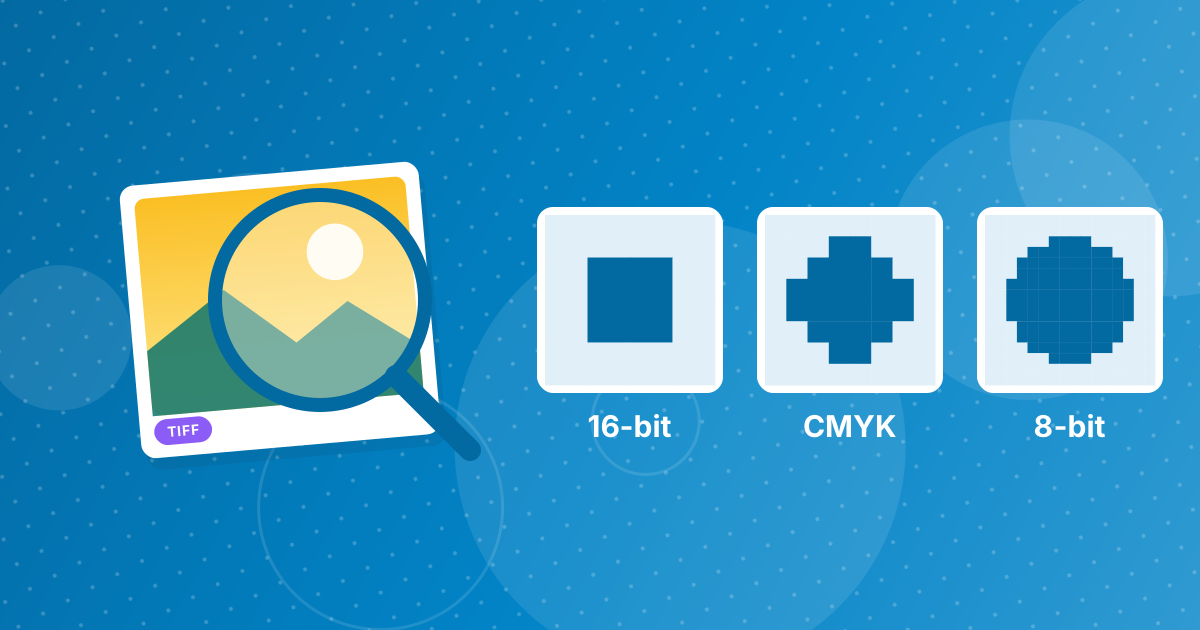
Converting TIFF to PNG keeps every visible pixel of an ordinary 8-bit RGB image, but some TIFF features do not survive: 16-bit colour becomes 8-bit, CMYK becomes RGB, layers are flattened and each page becomes a separate file. For on-screen use none of this is visible; for print masters it matters.
Here is what happens to each feature.
On this page
Key takeaways
- 8-bit RGB TIFFs convert with no visible change.
- 16-bit TIFFs become 8-bit PNGs in the browser.
- CMYK TIFFs are converted to RGB, which can shift some colours.
- Layers are flattened; pages become separate PNGs.
Steps shown in the video
- Click Choose TIFF Files and select your TIFF images
- Each file is listed with a preview and its size
- Click Convert to PNG
- Download your PNGs (several come as one ZIP)
TIFF features after conversion
| TIFF feature | In the PNG |
|---|---|
| 8-bit RGB pixels | Kept exactly |
| Transparency | Kept |
| 16 bits per channel | Reduced to 8 bits |
| CMYK colour | Converted to RGB |
| Layers | Flattened |
| Multiple pages | One PNG per page |
| Metadata (EXIF, IPTC) | Not carried over |
16-bit to 8-bit
Browsers draw images with 8 bits per channel, so 16-bit data is rounded to 256 levels per channel. On screen this is not visible; for heavy photo editing, keep the 16-bit TIFF master.
CMYK to RGB
Print files often use CMYK inks. Screens show RGB, so colours are converted. Vivid blues and rich blacks can look slightly different; compare important images against the original.
When to convert anyway
For web pages, documentation, sharing and previews, PNG is ideal. Convert with TIFF to PNG and keep the TIFF for print. See TIFF vs PNG for the bigger picture, or keep multi-page scans together with TIFF to PDF.
How to check whether your TIFF is affected
- Bit depth and colour mode: in an image editor, look at the image mode, such as RGB 8-bit, RGB 16-bit or CMYK.
- Layers: files saved from Photoshop with layers show them in the Layers panel.
- Pages: a viewer like macOS Preview lists all pages in the sidebar.
If your TIFF is 8-bit RGB with a single layer, converting to PNG changes nothing you can see.
Keep the TIFF, share the PNG
The safest approach is to treat the TIFF as the master and PNG as the distribution copy. Store TIFFs in your archive, and convert copies with TIFF to PNG whenever an image is needed for a website, documentation or a colleague without TIFF support. For photographs, TIFF to JPG gives smaller copies.
Sending files to a print shop
Print shops working in CMYK usually prefer TIFF or PDF, because those formats keep the colour information they need. Send them the original TIFF, not a PNG converted for screens. Use the PNG for proofs you email to clients and for previews on your website.
TIFF to PNG details: FAQ
Does TIFF to PNG lose quality?
Not for ordinary 8-bit RGB images. 16-bit and CMYK images are converted to 8-bit RGB.
Are TIFF layers kept?
No. The image is flattened.
What happens to multi-page TIFFs?
Each page becomes its own PNG.
Is metadata kept?
No. The PNG contains the pixels only.
Should I delete the TIFF after converting?
Keep it if it is a print or archive master.
How do I know if my TIFF is 16-bit?
Check the image mode in an image editor; it shows the bit depth and colour mode.
Should I delete TIFFs after converting?
Not if they are masters. Keep them and share PNG copies.
Does TIFF to PNG keep transparency?
Yes, when the TIFF has an alpha channel.
Is a PNG suitable as an archive master?
For 8-bit RGB images, yes, since PNG is lossless. For CMYK or 16-bit images, keep TIFF as the master.
Lossless for the screen
TIFF to PNG is lossless for everything you see on a screen. Keep the TIFF when print colour, bit depth or layers matter.