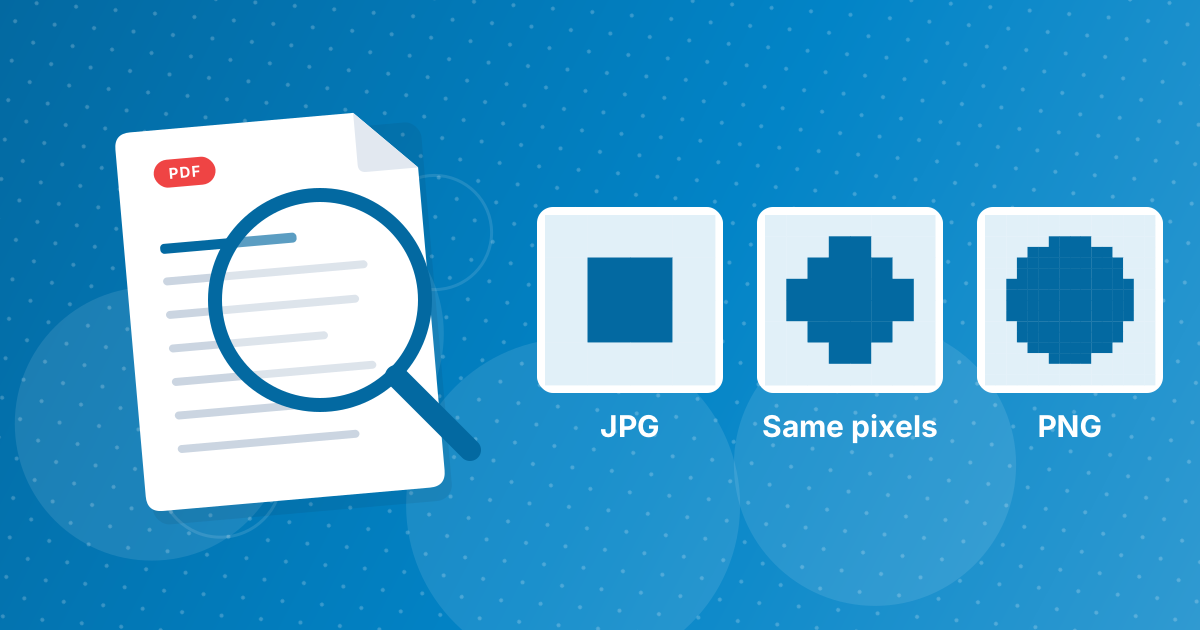
A JPG has no transparent pixels, so converting it to PNG gives a PNG with the same solid background. Transparency has to be created by removing the background in an image editor, then saving in PNG.
JPG to PNG is step one of that workflow: it gives you a lossless file to work on.
On this page
Key takeaways
- The converter does not remove backgrounds; it keeps every pixel.
- Convert to PNG first so editing does not add JPG loss.
- Remove the background in an editor, then export as PNG with transparency.
- Clean, high-contrast logos give the best edges.
Why conversion alone does nothing
A white background in a JPG is made of white pixels like any other. The PNG copy contains the same white pixels, now in a format that could hold transparency but has none. Making an area transparent means deleting those pixels or marking them as see-through, which is an editing step.
The workflow
- 1
Convert to PNG. Use JPG to PNG so that the next edits do not stack up JPG compression.
- 2
Open the PNG in an editor that supports transparency, such as an image editor with a background remover or a magic wand selection.
- 3
Select and delete the background, or run the editor's remove-background feature.
- 4
Export as PNG and keep the transparency option on.
- 5
Test it by placing the logo on a dark and a colored background.
Getting clean edges
- Start from the highest-quality JPG you have. Compression noise around the logo makes jagged edges.
- Logos with solid backgrounds work best. Photos with complex hair or fur need careful selection.
- Zoom in at 200 percent to check for a light fringe around the edges.
- Avoid enlarging the image before cutting it out.
After you have the transparent PNG
Make the file lighter for websites with PNG to WebP, which keeps transparency. Resize it for specific placements with Resize Image. If you need it as a JPG again, note that the transparent areas will turn white (PNG to JPG).
Other ways to get a transparent image
- Ask the creator of the logo or graphic for the original file, which is often already transparent.
- Use a design tool that exports with a transparent background.
- For simple icons, a vector SVG can be exported at any size and converted to PNG with transparency using SVG to PNG.
JPG to transparent PNG: FAQ
Does JPG to PNG remove the background?
No. The PNG has the same background as the JPG.
How do I make a JPG transparent?
Convert it to PNG, remove the background in an image editor and export as PNG.
Why convert to PNG first?
It avoids adding JPG compression while you edit.
Why are there light edges after cutting out?
Compression noise or antialiasing leaves a fringe. Clean the edge in the editor.
Can I get a transparent logo without editing?
Ask for the original logo file, which is often already transparent.
Which formats support transparency?
PNG and WebP, among others. JPG does not.
Does this tool remove backgrounds?
No. It converts format only.
Is the conversion private?
Yes. It runs in your browser.
Will white areas inside the logo also become transparent?
That depends on your selection. A careful cutout keeps white inside the logo and removes only the outer background.
How do I test the transparency?
Place the PNG on a dark or colored background in any editor or document and look for light edges.
Convert first, cut out second
Use JPG to PNG for a lossless starting point, then remove the background in an editor and export with transparency.