Convert the same PDF twice and you can get two very different JPGs: one razor sharp and heavy, the other small and a little soft. The difference comes down to two settings, resolution and quality, and understanding them takes about five minutes.
This guide explains what 1x, 2x and 3x mean in the PDF to JPG converter, gives you the real pixel dimensions for A4 and US Letter pages, and shows which combination to use for email, websites, slides and printing.
On this page
- Resolution and quality are two different dials
- Resolution: what 1x, 2x and 3x really mean
- Quality: how much compression is acceptable?
- Match the settings to the job
- Scanned PDFs: you cannot add detail that was never there
- Can you print the JPGs?
- Keeping file sizes under control
- PDF to JPG resolution and quality: FAQ
Key takeaways
- Resolution (1x, 2x, 3x) sets the pixel size of each image; quality (low, medium, high) sets how strongly the JPG is compressed.
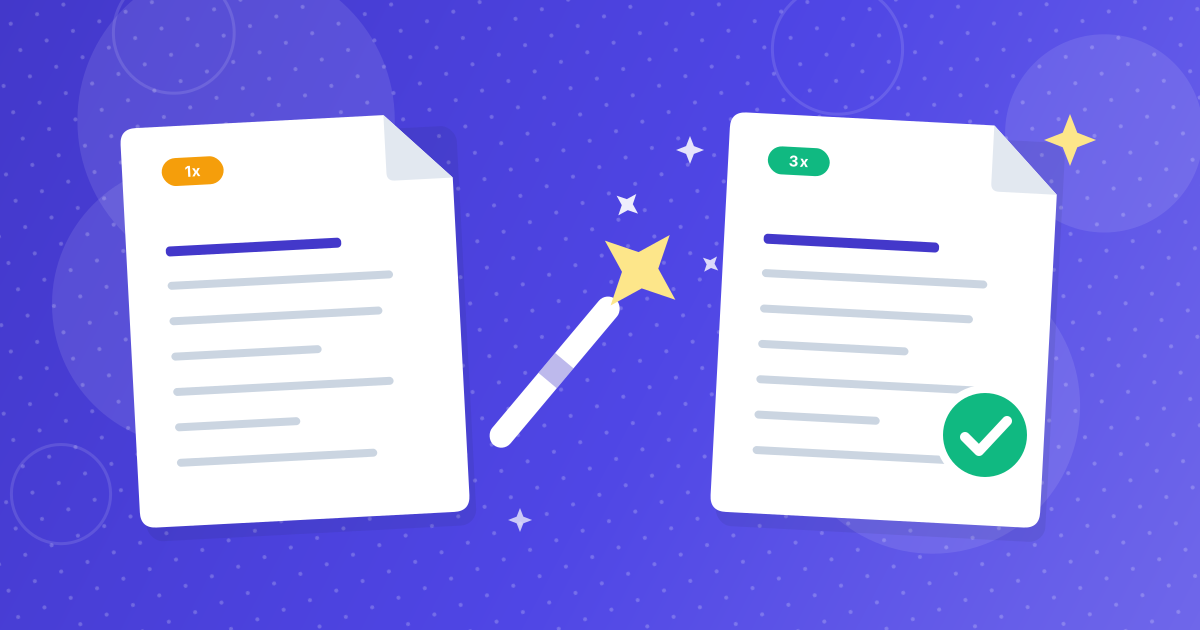
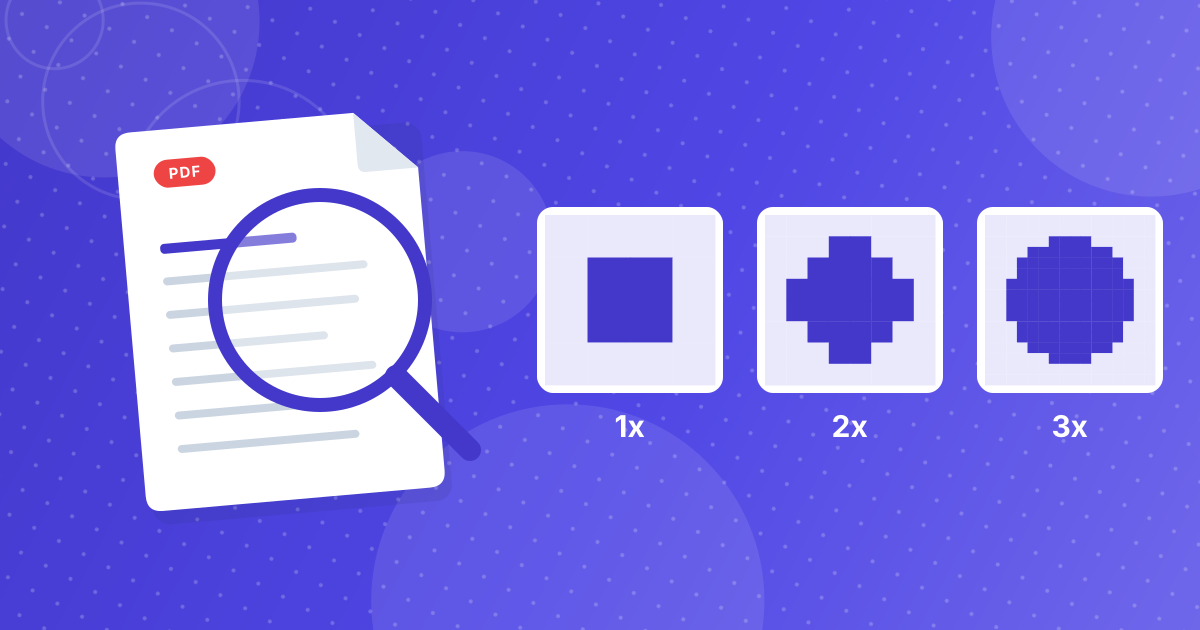
- Each step up in resolution multiplies the pixel count: 2x has four times the pixels of 1x, and 3x has nine times.
- 2x with medium quality suits most screens and documents; 3x with high quality is for zooming, small print and draft printing.
- Rendering above the original resolution of a scanned page makes bigger files but does not add detail.
Resolution and quality are two different dials
People often use the words interchangeably, but they control different things. Resolution is how many pixels the finished image contains, its width and height. Quality is how aggressively the JPG compression throws away fine detail to save space.
You can have a large image at low quality (many pixels, visible compression noise) or a small image at high quality (few pixels, but clean). Getting a result you are happy with means setting both for the job at hand.
Resolution: what 1x, 2x and 3x really mean
A PDF page has a physical size measured in points, where one point is 1/72 of an inch. An A4 page is about 595 by 842 points and a US Letter page is 612 by 792 points. At 1x the converter draws one pixel for every point, so the image has 72 pixels per inch. At 2x it draws two pixels per point (144 pixels per inch), and at 3x three (216 pixels per inch). People usually call this DPI, though strictly it is pixels per inch.
| Setting | Pixels per inch | A4 page | US Letter page | Good for |
|---|---|---|---|---|
| 1x | 72 | 595 × 842 px | 612 × 792 px | Thumbnails and quick previews |
| 2x | 144 | 1190 × 1684 px | 1224 × 1584 px | Reading on screen, slides, websites |
| 3x | 216 | 1785 × 2526 px | 1836 × 2376 px | Zooming in, small print, draft prints |
Quality: how much compression is acceptable?
JPG compresses by simplifying small blocks of the image. The lower the quality, the more it simplifies, and the smaller the file becomes. The converter offers three levels:
- Low, the smallest files. Fine for previews and chat, but fine text can look slightly fuzzy.
- Medium, the sweet spot for most documents. Files stay reasonable and text remains clean at normal viewing size.
- High, keeps the most detail with only mild compression. Choose it for diagrams, small print or images you will crop and reuse.
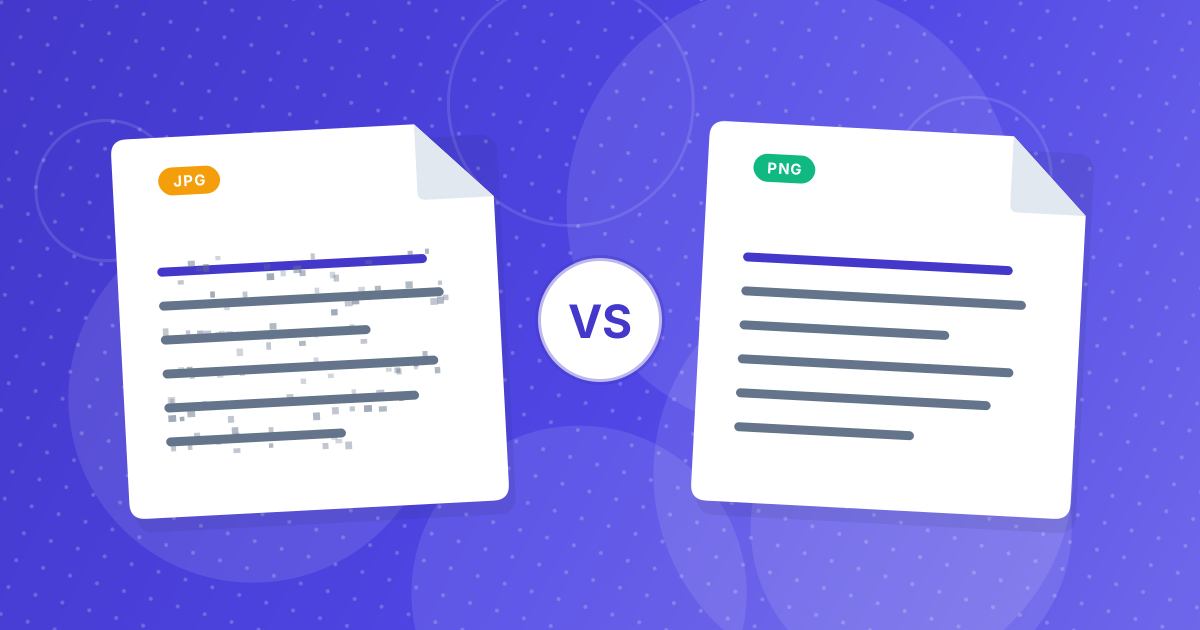
Text pages are less forgiving than photos. Compression noise shows up as faint speckles around black letters on a white page, while a photograph hides the same noise in its texture. If a page is mostly text or line art, lean towards higher quality, or look at PDF to PNG, which uses no lossy compression at all.
Match the settings to the job
- Email or chat attachment: 1x or 2x, low or medium quality. Small, quick to send.
- Website or blog images: 2x, medium quality, then run the files through the Image Compressor for an extra size reduction.
- Slides and documents: 2x, medium quality. This is sharp on a full-HD screen without bloating the presentation.
- Social media: 2x, medium quality. Platforms re-compress uploads anyway, so extra quality is wasted.
- Reading small print on a phone: 3x, high quality so zooming stays crisp.
- Text recognition (OCR): 3x, high quality. Sharper letters give Image to Text a better chance of reading them correctly.
Scanned PDFs: you cannot add detail that was never there
A scanned PDF is really a photograph of paper stored inside a PDF. If the scan was made at 300 pixels per inch, an A4 page already holds roughly 2480 by 3508 pixels. Converting it at 3x (1785 by 2526 pixels) actually reduces some detail, so use the highest setting for scans.
The opposite is also true. A low-resolution scan cannot be sharpened by converting it at 3x; you just get a bigger file of the same blur. Check the quality of the original before you blame the converter.
Can you print the JPGs?
Yes, with realistic expectations. Professional printing normally expects around 300 pixels per inch. The 3x setting gives 216, which looks fine on a home printer for drafts, handouts and reference copies, but is below that benchmark for glossy, close-up work.
If print quality matters, keep printing from the original PDF. A PDF stores text and vector graphics as shapes that stay sharp at any size, which a JPG cannot match. Use the JPGs when you need an image, not when you need the best possible print.
Keeping file sizes under control
If your converted images are too large, work backwards through the same dials: drop to medium quality first, then step the resolution down from 3x to 2x. After conversion you can still trim size with the Image Compressor or reduce dimensions with the Image Resizer.
Troubleshooting a specific problem? Our guide to fixing blurry, oversized or blank PDF to JPG results covers the most common cases.
PDF to JPG resolution and quality: FAQ
What DPI is 2x in the PDF to JPG converter?
2x renders at 144 pixels per inch, twice the 72 pixels per inch of 1x. 3x renders at 216 pixels per inch.
Is 3x enough for printing?
It is fine for drafts and handouts, but professional printing normally calls for about 300 pixels per inch. For best print quality, print from the original PDF.
Why is my JPG file so large?
Large files usually come from 3x resolution combined with high quality, or from pages full of photos. Try 2x and medium quality, then compress the result with an image compressor.
Does higher quality always look better?
Only up to a point. Beyond medium or high, the extra detail is hard to see at normal viewing size, while the file keeps growing.
Can I get a resolution higher than 3x?
The converter offers 1x, 2x and 3x. Enlarging an image afterwards makes it bigger but cannot recover detail that was not rendered, so choose the highest level you need up front.
A simple rule to remember
Start at 2x and medium. Go down for small, fast files. Go up to 3x and high only when the detail genuinely matters. Two settings, a few seconds of testing, and the JPGs fit the job.