Most PDF to JPG conversions work first time. When one does not, the symptoms are usually one of five: blurry text, files that are far too large, blank or missing pages, odd colors, or an error. Each has a small number of causes, and most are fixed by changing a setting or preparing the PDF first.
Use the table below to jump to your symptom, then follow the fix with the free PDF to JPG converter.
On this page
- Find your problem at a glance
- Problem 1: the JPG looks blurry
- Problem 2: the files are too large
- Problem 3: blank pages, errors or nothing happens
- Problem 4: the colors look different
- Problem 5: pages are sideways, upside down or out of order
- A pre-flight checklist for clean results
- PDF to JPG troubleshooting: FAQ
Key takeaways
- Blurry text is almost always a resolution issue: move from 1x to 2x or 3x, and from low to high quality.
- Oversized files come from 3x with high quality; step down one setting, then compress the images.
- Blank pages, errors and failures usually trace back to a locked, damaged or very large PDF.
- Preparing the PDF first – rotate, trim, unlock – solves problems the converter cannot.
Find your problem at a glance
| Symptom | Likely cause | Quick fix |
|---|---|---|
| Text looks soft or fuzzy | Resolution too low, or quality set to low | Convert at 2x or 3x with medium or high quality |
| Files are huge | 3x with high quality, or photo-heavy pages | Drop to 2x and medium, then compress |
| Blank or error on a protected file | The PDF is password protected | Unlock it first, if you are allowed to |
| Wrong colors | The PDF uses a color mode JPG does not store | Expect a small shift; compare at high quality |
| Pages sideways or upside down | Page orientation is set in the PDF | Rotate the PDF, then convert |
| Very slow or stops partway | A huge PDF on a device with limited memory | Convert fewer pages at a time |
Problem 1: the JPG looks blurry
Blurry output is the most common complaint and, luckily, the easiest to fix. Work down this list:
- 1
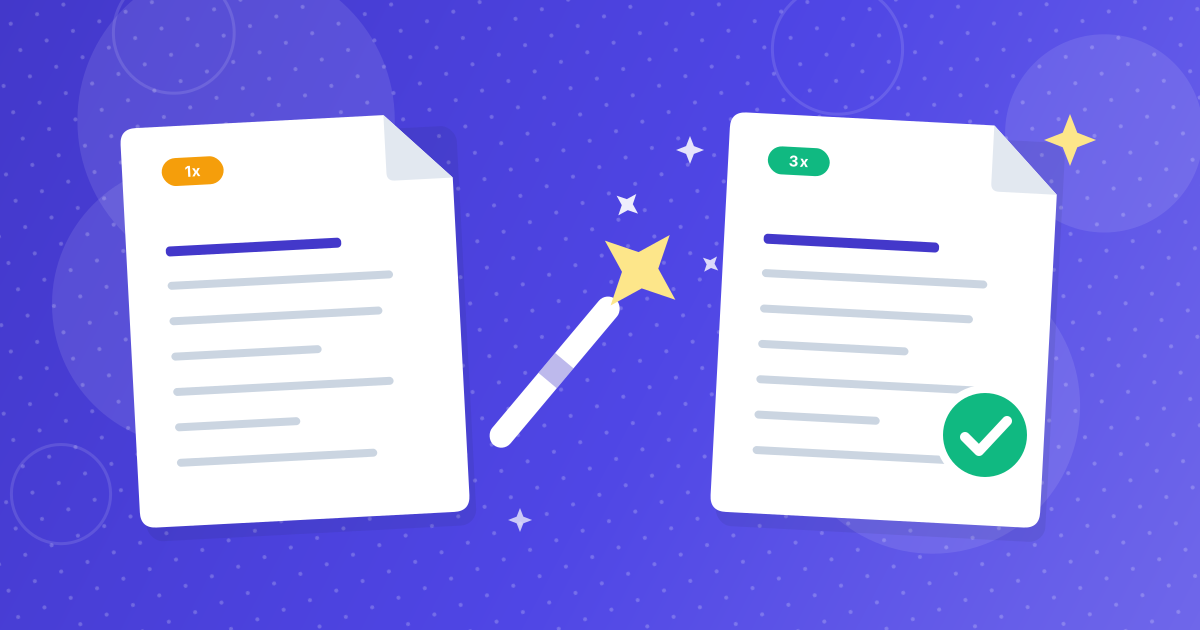
Raise the resolution. At 1x the converter draws 72 pixels per inch, which is not enough for body text. Use 2x for screens and 3x if you need to zoom.
- 2
Raise the quality. Low quality adds visible compression noise around letters. Choose medium or high.
- 3
Check the source. If the PDF is a low-resolution scan or contains a small, stretched image, no setting can add detail that was never there. Compare against the original in your PDF viewer.
- 4
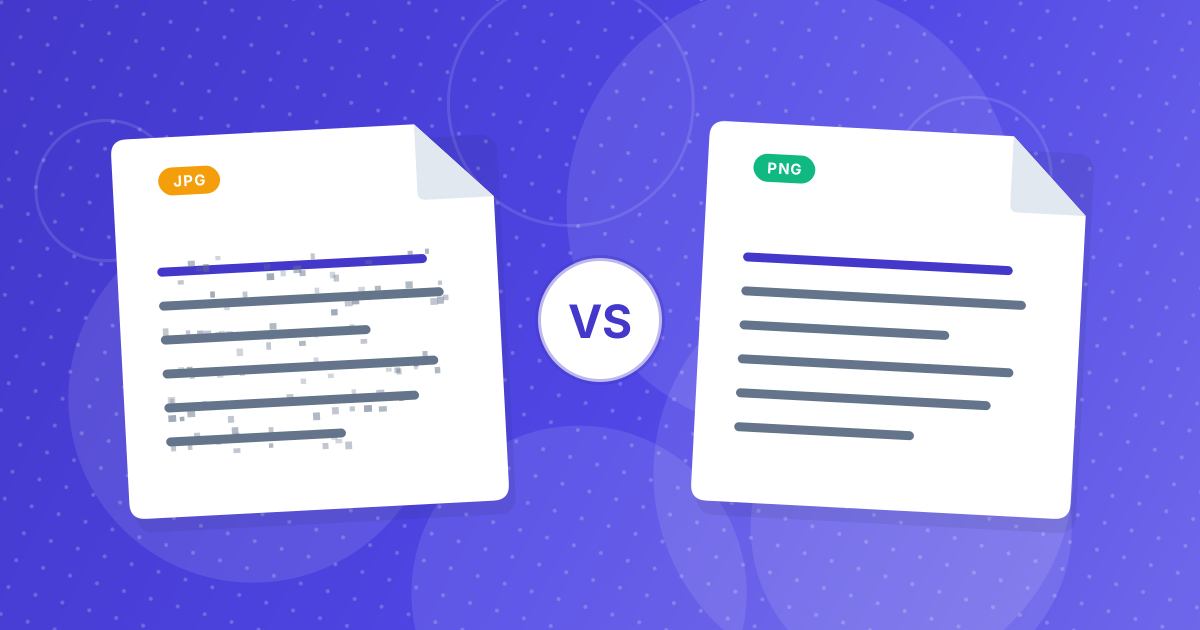
Try PNG. If edges still look rough, PDF to PNG saves the page without lossy compression.
If you want the numbers behind these recommendations, our guide to PDF to JPG resolution and quality lists the pixel size produced by each setting.
Problem 2: the files are too large
Size is directly tied to pixel count and quality. The fixes, in order of effect:
- Step down the resolution. Going from 3x to 2x cuts the pixel count by more than half.
- Step down the quality. From high to medium usually shrinks files noticeably without visible harm.
- Compress afterwards. The Image Compressor squeezes JPGs further and lets you check the result before you download.
- Resize. If the images will only be shown small, shrink their dimensions with the Image Resizer.
- Trim the PDF. Convert only the pages you need, using Extract Pages or Remove Pages.
Problem 3: blank pages, errors or nothing happens
The PDF is password protected
A converter cannot render a page it cannot open. If your PDF asks for a password when you open it, unlock it first with Unlock PDF, but only if you have the right to remove the protection.
The file is damaged
A PDF that was interrupted during download or email transfer can be incomplete. Open the file in a PDF viewer. If it will not open there either, get a fresh copy from the sender.
The PDF is very large
Because the page is drawn on your own device, very long or very heavy PDFs need memory. If your browser slows down or stops, close other tabs, try a desktop browser, or split the document into smaller parts with Split PDF and convert them one at a time.
A page still comes out blank
Check the original page first: some PDFs genuinely contain white pages. If the original shows content, try another browser, or open the PDF in a viewer and save a fresh copy before converting again.
Problem 4: the colors look different
JPGs created for screens use the RGB color model. Some PDFs, particularly ones prepared for professional printing, use CMYK inks or special color profiles. When these are rendered for a screen, a small shift is normal: rich blacks and bright blues in particular can look slightly different.
Using high quality keeps the shift as small as possible. If exact color is critical, check the images against the original PDF on the same screen before you rely on them.
Problem 5: pages are sideways, upside down or out of order
The converter draws each page the way the PDF says it should appear, so a sideways page stays sideways. Fix the document first, then convert:
- Turn pages upright with Rotate PDF.
- Put pages in the right order with Reorder PDF.
- Combine several files into one document first with Merge PDF, if you want a single run.
A pre-flight checklist for clean results
- The PDF opens normally in a viewer and is not password protected.
- Pages are upright and in the right order.
- Only the pages you need remain.
- Resolution is at least 2x for text, 3x for fine detail.
- Quality is medium or higher for documents; low only for previews.
Also worth reading before you convert important documents: Is it safe to convert PDF to JPG online?
PDF to JPG troubleshooting: FAQ
Why is my converted JPG blurry?
The most common reason is a resolution that is too low. Convert at 2x or 3x with medium or high quality. If the original PDF is a low-resolution scan, the JPG cannot be sharper than the scan.
How do I make PDF to JPG files smaller?
Use 2x resolution and medium quality, convert only the pages you need, and run the images through an image compressor or resizer.
Why does my PDF to JPG conversion fail?
Common causes are a password-protected PDF, a damaged file, or a very large document that your device cannot handle in one go. Unlock, replace or split the file and try again.
Why are my JPG colors different from the PDF?
JPGs for screens use RGB. PDFs prepared for printing may use CMYK, so a slight shift is normal when they are rendered for display.
Can I fix a sideways page before converting?
Yes. Rotate the PDF first so the page is upright, then convert it to JPG.
Most problems are one setting away
When a PDF to JPG result looks wrong, change one thing at a time: resolution first, then quality, then the PDF itself. A few seconds of adjustment is usually all it takes.