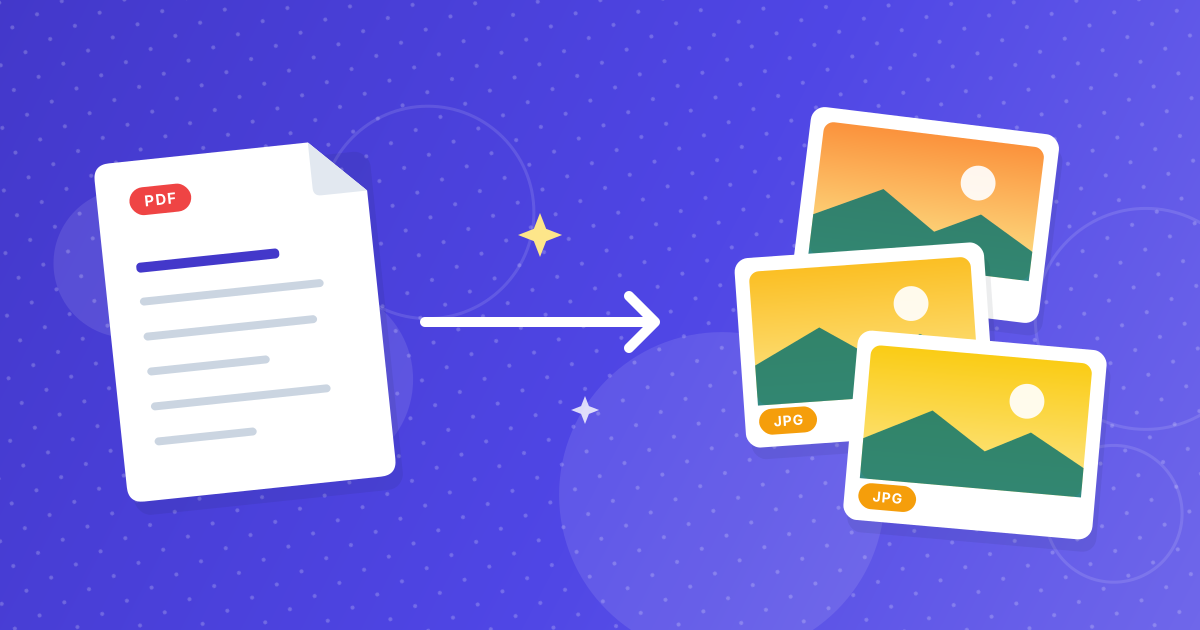
Converting a PDF to JPG online is convenient, but the PDF in question is often not a casual file. It might be a signed contract, a scanned passport, a payslip or a medical report. Before you hand any of that to a website, it is worth knowing what the website does with it.
This guide explains the two ways online converters work, what the risks of each are, how you can check what a tool does for yourself, and how to use the PDF to JPG converter in a way that keeps your documents on your own device.
On this page
Key takeaways
- Many online converters upload your PDF to a server, process it there and send the result back; your file then exists on someone else's computer.
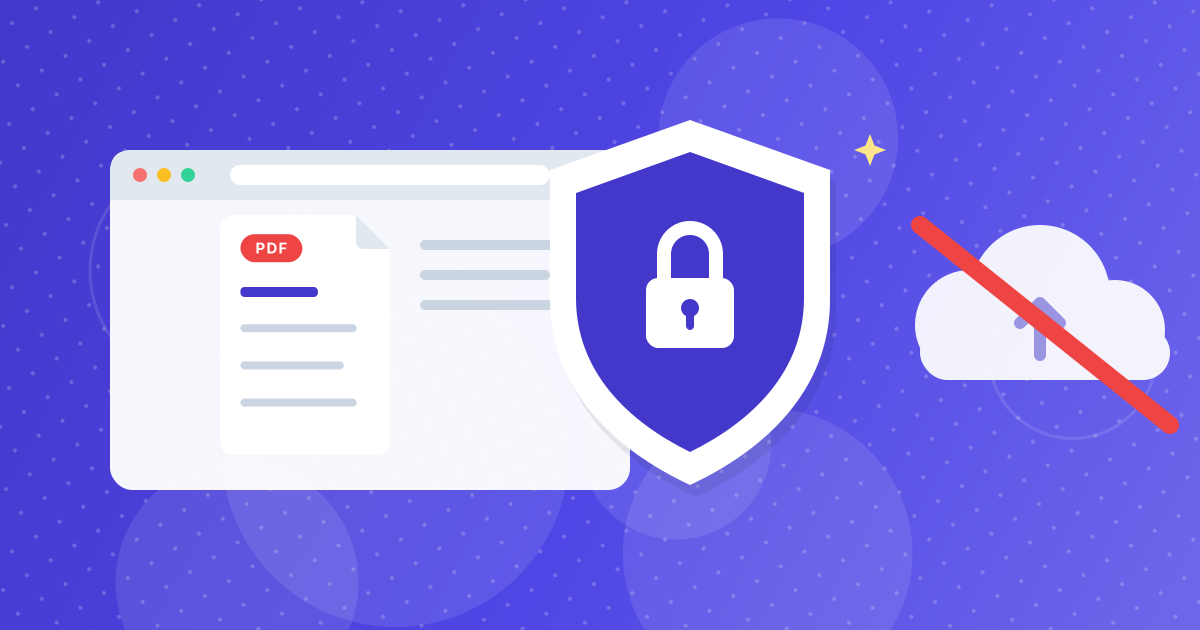
- In-browser converters render the PDF on your own device with JavaScript, so the file does not need to be sent anywhere.
- You can verify the difference yourself by watching the Network tab in your browser's developer tools while converting.
- Even a private tool cannot protect an image once you share it, so treat the JPGs with the same care as the original PDF.
Two kinds of online converter
Server-based converters
You pick a file, the site uploads it to a server, software on that server converts it, and you download the result. This model is common because it lets a company run heavy software, but it means a copy of your document travels across the internet and sits, at least briefly, on a machine you do not control.
Browser-based converters
The page contains the conversion code. When you choose a file, your browser reads it from your device and does the work locally, using the same technology that displays PDFs and draws images on screen. The result is created on your device and downloaded straight from memory. The PDF to JPG converter works this way: it renders each page of your PDF on a canvas in your browser and saves it as a JPG.
What can go wrong with upload-based converters?
Plenty of upload-based services are run responsibly, so this is not a claim that they are all unsafe. It is a list of questions you cannot answer just by looking at the site:
- How long is the file kept? Some services delete after an hour, others keep files longer, and the policy may be hard to find.
- Who can access it? Staff, contractors, backup systems and logs can all touch stored files.
- Where is it stored? Servers in other countries may be subject to different laws than yours.
- Is it used for anything else? Some free services fund themselves with data or advertising.
- What if the service is breached? A breach exposes every file stored at that moment.
How to check whether a converter uploads your file
You do not have to take a website's word for it. Your browser can show you what it sends.
- 1
Open the converter page and press F12 (or right-click and choose Inspect) to open the developer tools.
- 2
Switch to the Network tab and clear the list so you start from a clean view.
- 3
Add your PDF and run the conversion.
- 4
Look at the requests that appear. An upload-based tool will show a large outgoing request that carries your file. A browser-based tool will not send your document anywhere – you may still see the page's own scripts and fonts loading.
Use a throwaway PDF for the test if you want to be extra careful, and run it before you trust the tool with a real document.
Good habits for any PDF conversion
- Read the site's privacy policy before uploading anything confidential.
- Prefer HTTPS sites; the padlock in the address bar means the connection is encrypted in transit.
- Trim the PDF to the pages you need first with Extract Pages, so you handle less sensitive material.
- Remove pages you do not need to share with Remove Pages.
- Delete downloaded images you no longer need, including from your Downloads folder and cloud sync folders.
- Keep the original protected: use Protect PDF to add a password before storing or sending it.
What converting to JPG does and does not protect
Converting to JPG strips out the PDF's hidden text layer, so the words can no longer be copied or searched, and any scripts or attachments inside the PDF are left behind. That can be a useful side effect when you want to share only what is visible on the page.
It is not a redaction method, though. Everything visible on the page stays visible in the image, including names, numbers and signatures. Black boxes drawn over text in a PDF editor are only safe once the file has been flattened to an image, so check the result before you send it.
Privacy after the conversion
A private conversion protects the file while you work. Once you email, post or upload the JPGs, they are as exposed as any other image. Share them only with people who should see them, and think about size and resolution: a 1x or 2x image is enough to read, and lower resolution shares less detail than a sharp 3x image. For more on the settings, see our guide to PDF to JPG resolution and quality.
PDF to JPG privacy: FAQ
Does the PDF to JPG converter upload my files?
No. The conversion runs in your browser, so your PDF is read and rendered on your own device and is not sent to a server for processing.
How can I be sure a converter does not upload my file?
Open your browser's developer tools, go to the Network tab, run the conversion and look for an outgoing request carrying your file. A browser-based tool will not make one.
Is it safe to convert a PDF containing personal data?
A tool that processes the file locally avoids sending it anywhere, which is the main risk. You should still protect the resulting images and avoid sharing them more widely than necessary.
Does converting a PDF to JPG remove hidden information?
It removes the text layer, scripts and attachments, but not anything that is visible on the page. Always check the image before you share it.
Should I password-protect the original PDF?
If it contains sensitive information, yes. Adding a password to the PDF keeps the original safe while you store or send it.
Know where your file goes
Convenience should not cost you control of your documents. Choose a converter that does the work in your browser, verify it with the Network tab if you like, and handle the finished images with the same care as the original.