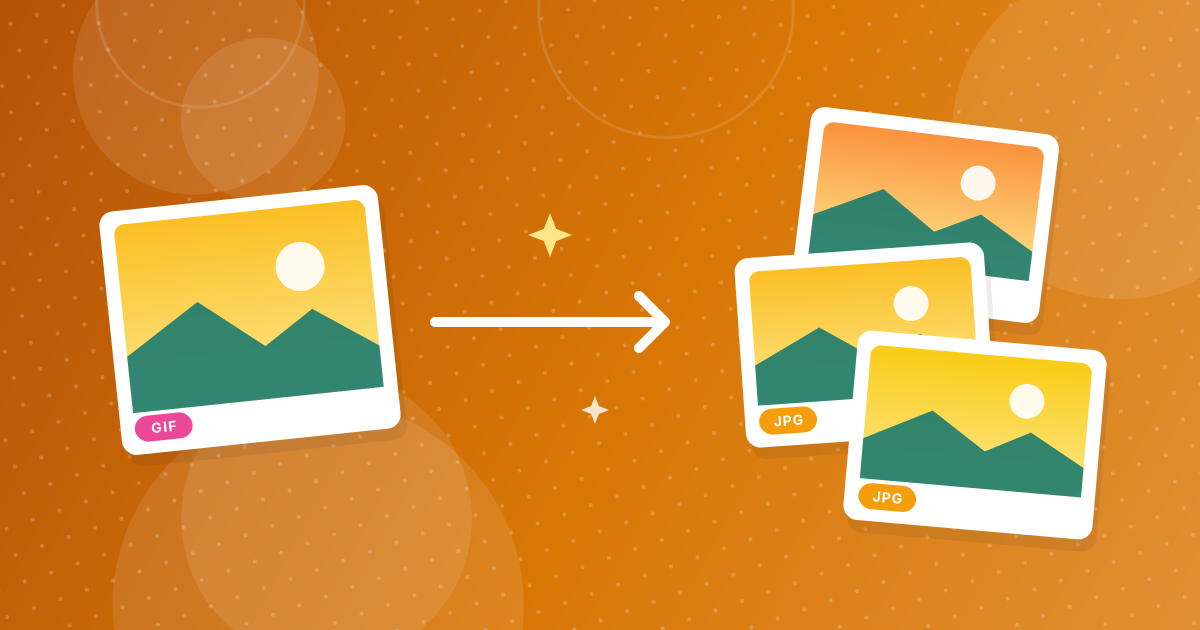
To convert GIF to JPG, add your .gif files to the GIF to JPG converter and download the JPGs. Each image keeps its original pixel size, transparent areas become white, and an animated GIF is saved as its first frame.
JPG is accepted by more apps, editors and upload forms than GIF, and it handles photographic images far better. Here are the steps and what to expect from the result.
On this page
Key takeaways
- Each GIF becomes one JPG at its original dimensions.
- Transparent pixels are filled with white, because JPG has no transparency.
- Animated GIFs are converted using their first frame.
- Several files are downloaded together as a ZIP.
Steps shown in the video
- Click Choose GIF Files and select your GIF images
- Each file is listed with a preview and its size
- Click Convert to turn them into JPG files
- Download your JPGs (several come as one ZIP)
How to convert GIF to JPG in three steps
- 1
Add your GIF files. Open the GIF to JPG tool and drag in one image or a whole folder.
- 2
Convert. Click Convert. Each GIF is saved as a JPG at high quality (92 percent).
- 3
Download. Save the JPG, or the ZIP archive when you converted several.
The images are converted in your browser, so they are not uploaded anywhere.
What changes in the JPG?
| In the GIF | In the JPG |
|---|---|
| Pixel dimensions | Unchanged |
| Transparent background | White |
| Animation | First frame only |
| Up to 256 colours | Full colour range available, existing colours kept |
The details of transparency and animation are covered in GIF to JPG: transparency and animation explained.
When does converting GIF to JPG make sense?
- Photos that were saved as GIF and look grainy or banded in apps that handle GIF poorly.
- Upload forms or editors that only accept JPG.
- Printing, where JPG is supported by every print service.
For logos, icons and graphics with transparency, GIF to PNG keeps the transparent background instead. Not sure which format to keep? Read GIF vs JPG.
After converting
Resize the JPGs for a website or form with the Image Resizer, or shrink them further with the Image Compressor.
Converting a folder of GIFs
Select every GIF in the folder and add them together. The converter processes them in your browser and returns one ZIP containing a JPG for each file, with the original names kept. Large batches take a little longer on phones, because each image is decoded and encoded on the device.
If some of the GIFs are logos or icons with transparent backgrounds, convert those separately with GIF to PNG so the transparency survives.
GIF to JPG: frequently asked questions
How do I convert a GIF to JPG?
Add the GIF to the GIF to JPG converter, click Convert and download the JPG.
Can I convert several GIFs at once?
Yes. Add them together and download a ZIP with all the JPGs.
What happens to an animated GIF?
The first frame is saved as the JPG.
Why does the background turn white?
JPG cannot store transparency, so transparent areas are filled with white.
Are my images uploaded?
No. The conversion runs in your browser.
What quality are the JPG files?
They are saved at 92 percent JPG quality, which looks practically identical to the original.
Can I choose which frame of an animated GIF to convert?
The converter always uses the first frame. To use another frame, export it from an editor such as GIMP and save that frame as JPG.
Is GIF to JPG lossless?
No. JPG uses lossy compression, but at 92 percent quality the result looks practically identical to the GIF.
Can I convert GIF to JPG on a phone?
Yes. Open the tool in your mobile browser, pick the GIFs and download the JPGs or ZIP.
A JPG that works everywhere
Converting GIF to JPG gives you a full-size image that every app, printer and form accepts. Use PNG instead when transparency matters.