When a GIF becomes a JPG, transparent areas turn white, only the first frame of an animation is kept, and the colours stay as they were. JPG has no transparency and no animation, so those features cannot survive the conversion. The GIF to JPG converter handles each case predictably.
This explainer shows what happens to each feature and which format to use when you need to keep it.
On this page
Key takeaways
- Transparency becomes white because JPG has no alpha channel.
- Animation is reduced to the first frame.
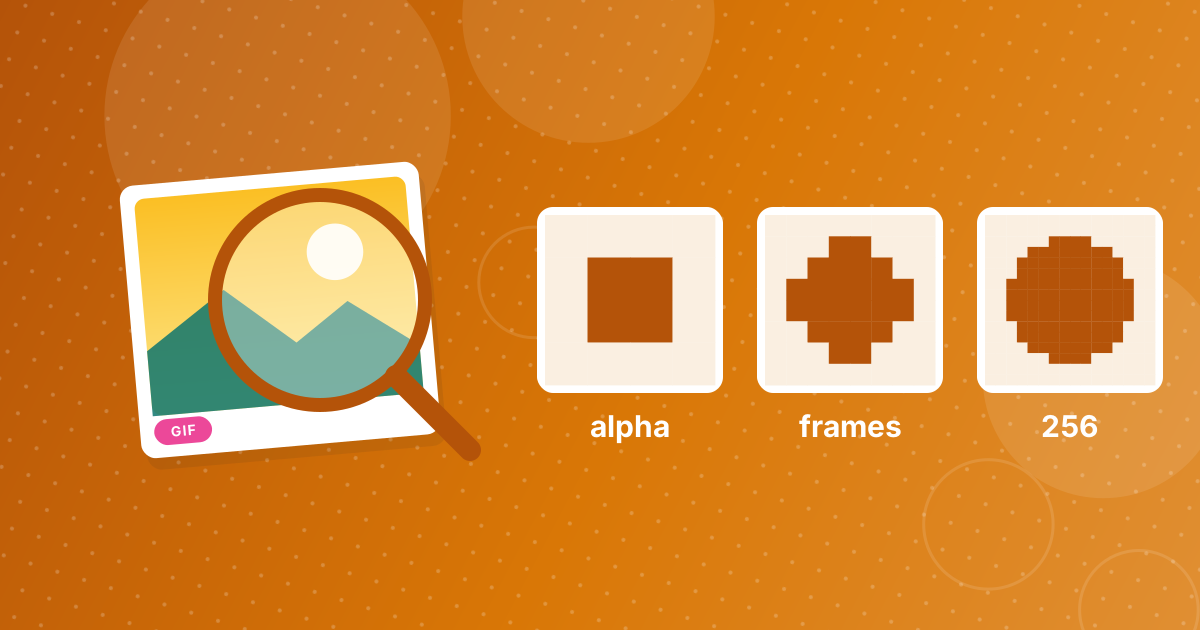
- GIF's 256-colour palette is kept; converting does not add detail.
- Use PNG for transparency and keep the GIF for animation.
Steps shown in the video
- Click Choose GIF Files and select your GIF images
- Each file is listed with a preview and its size
- Click Convert to turn them into JPG files
- Download your JPGs (several come as one ZIP)
Transparency becomes white
GIF can mark one palette colour as transparent. JPG has no way to store transparency, so every transparent pixel needs a real colour. The converter fills it with white, which suits documents, white web pages and printing. Without that fill, many tools would turn transparency black.
Animation becomes the first frame
A JPG holds one still image. For an animated GIF, the converter saves the first frame. If that frame is blank or not representative, export the frame you want with an editor such as GIMP, where each frame is a layer, and save it as JPG from there.
Colours stay the same
GIF images use at most 256 colours. Converting to JPG keeps those colours but cannot restore detail that was lost when the image was first saved as GIF. Banding in a GIF photo will still be visible in the JPG.
JPG compression is applied at high quality (92 percent), so flat areas stay clean. Small text and sharp pixel art can show faint artefacts; for those, PNG is the safer choice.
Which format keeps what
| You need to keep | Use |
|---|---|
| Transparency | PNG |
| Animation | Keep the GIF, or use video |
| Small size for photos | JPG |
| Sharp pixel art or text | PNG |
For the conversion itself, see how to convert GIF to JPG.
Need a background colour other than white?
The converter always fills transparent areas with white. If the image will sit on a dark website or slide, a white box around it can look out of place. Two options: convert to GIF to PNG and keep transparency, or open the PNG in an editor, add a background layer in your colour and export a JPG from there.
GIF features in JPG: FAQ
Why does my transparent GIF have a white background as JPG?
JPG cannot store transparency, so transparent pixels are filled with white.
Can I convert an animated GIF to JPG?
Yes, but only one frame is kept: the first one.
How do I keep transparency?
Convert the GIF to PNG instead of JPG.
Will the JPG look better than the GIF?
No. Converting cannot add colours or detail that the GIF does not contain.
How do I get a different frame?
Export that frame from an image editor such as GIMP and save it as JPG.
Can I convert every frame of a GIF to JPG?
Not with this converter, which saves the first frame. Export individual frames with an image editor.
Will the JPG be larger than the GIF?
For photos, the JPG is usually smaller. For simple graphics, sizes can be similar.
Can I keep the animation as a video instead?
Yes, with video conversion software. Short MP4 or WebM videos are usually much smaller than animated GIFs and keep the motion.
Know what JPG can hold
JPG is a still, opaque format. Expect a white background and a single frame, and choose PNG or keep the GIF when transparency or motion matters.