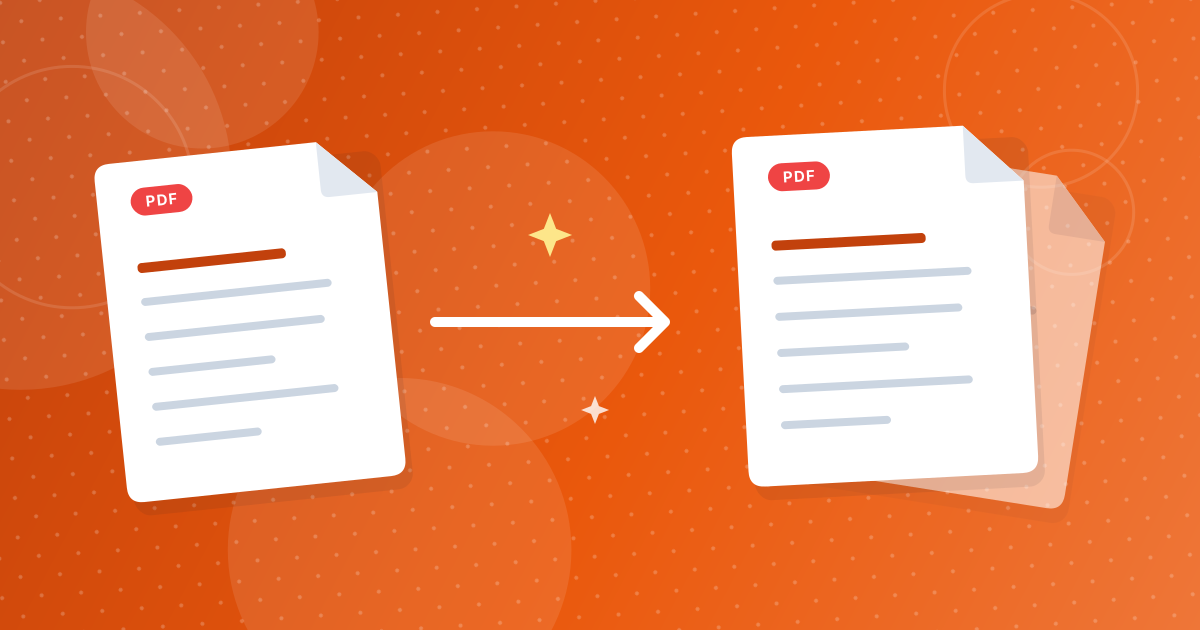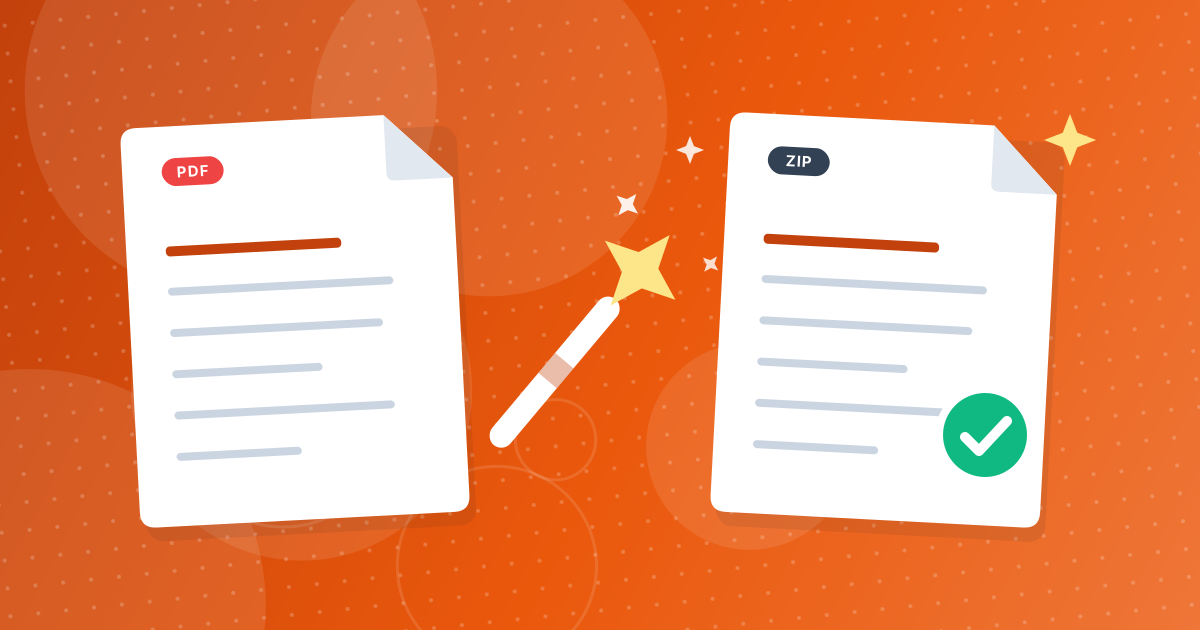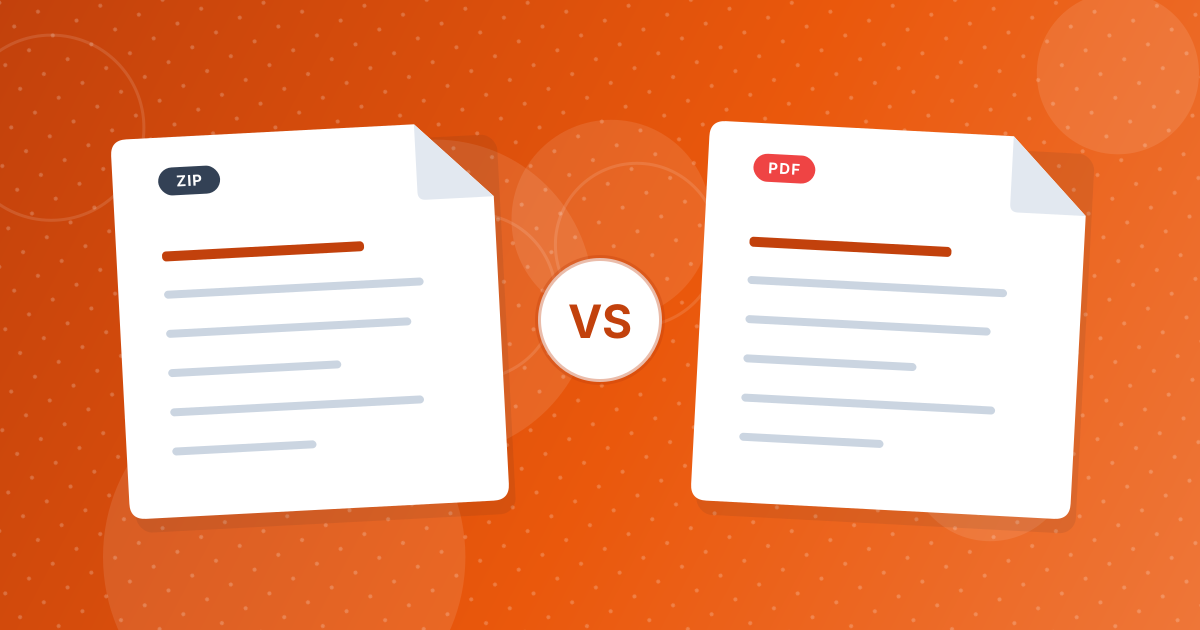
Split PDF offers two ways to save the pages you pick. One file per page gives a separate PDF for each page, packed in a ZIP. Single PDF gives one new document containing just the chosen pages, in their original order.
Pick the first when pages are independent items, such as invoices. Pick the second when you want a shorter version of a document.
On this page
Key takeaways
- One file per page makes N PDFs in a ZIP named after the original.
- Single PDF makes one PDF named name-extracted.pdf.
- If you select only one page, you get a plain PDF without a ZIP.
- Both modes copy pages unchanged, so text stays selectable.
The two modes side by side
| One file per page | Single PDF | |
|---|---|---|
| Output | A PDF for each selected page | One PDF with all selected pages |
| Packaging | ZIP file (plain PDF if one page) | A single PDF |
| File names | name-page-N.pdf inside name-split.zip | name-extracted.pdf |
| Page order | Each file stands alone | Pages keep their original order |
| Best for | Independent pages: invoices, forms, certificates | A chapter, a section, a shorter document |
When to use One file per page
- A scan of 40 receipts that you want to file individually.
- A batch of payslips or certificates, each meant for a different person.
- A set of forms that must be uploaded one at a time.
- Slides you want to share individually.
The ZIP keeps the pieces together for download. Unzip it, and the files are named in page order.
When to use Single PDF
- Sending just the relevant part of a long report.
- Sharing a chapter from a book you own.
- Dropping unwanted pages: select the ones to keep.
- Creating a short version for a meeting.
Split PDF compared with other page tools
Extract Pages does the same job as Single PDF but takes typed ranges instead of clicks, which suits long files. Remove Pages works the other way round: you choose what to delete. The difference between extracting and removing is explained in remove pages vs extract pages.
After splitting
Join pieces again with Merge PDF, compress large pages with Compress PDF, and read the basics in how to split a PDF.
Two worked examples
A 12-page scan holds twelve receipts. Keep all pages selected, choose One file per page and download the ZIP: you get receipt-page-1.pdf through receipt-page-12.pdf, each ready to file or attach to an expense claim.
A 90-page report has a summary on pages 3 to 8. Clear the selection, click pages 3 to 8, choose Single PDF and download report-extracted.pdf. The six pages stay in order and the text remains selectable.
Split PDF modes: FAQ
What is the difference between the two modes?
One file per page makes a separate PDF for each page in a ZIP. Single PDF puts the selected pages together in one file.
What if I select just one page?
You get a plain PDF, not a ZIP.
Will the pages stay in order in Single PDF mode?
Yes. They follow their original order.
Can I change the order of pages?
Not in Split PDF. Use Reorder PDF afterwards.
What are the files named?
Single pages are name-page-N.pdf, the ZIP is name-split.zip and a single PDF is name-extracted.pdf.
Is the text still selectable?
Yes. Pages are copied without conversion.
Can I split every two pages?
Not directly. Select the pages for each part and download them in turn.
Is there an upload?
No. Splitting happens in your browser.
Separate items or a shorter document
Use one file per page for independent pages and a single PDF for a trimmed version of a document.