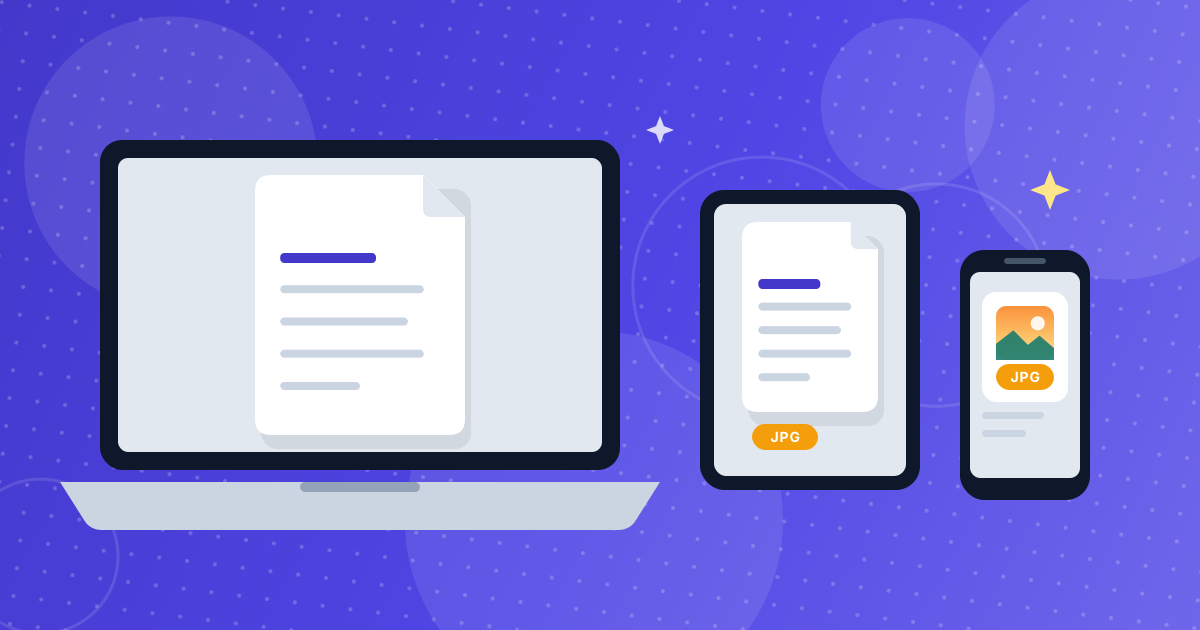
You do not need the same tool on every device to turn a PDF into a picture, but you do need to know what each device can actually do. Windows has no built-in PDF-to-JPG converter. A Mac can export a page through Preview. Phones mostly leave you with screenshots.
This guide walks through the options on Windows, Mac, iPhone, iPad and Android, explains where the built-in workarounds fall short, and shows how the free PDF to JPG converter gives you the same result on all of them from a normal browser tab.
On this page
Key takeaways
- Windows, iOS and Android have no one-step way to save every page of a PDF as a JPG.
- Mac Preview can export a page as a JPEG, but it is designed for single pages and gets repetitive for long documents.
- Screenshots capture only what is on the screen and at the screen's resolution – not the page's real detail.
- A browser-based converter works the same on every device and renders each page at a resolution you choose.
Why the built-in options usually fall short
Operating systems treat a PDF as a document to view, print or sign. Turning it into a set of images is a different job, and most of them leave it to third-party apps. That is why so many people end up taking screenshots of PDF pages.
Screenshots are fast, but they have clear limits. They capture only the part of the page that fits on the screen, they are limited to the screen's resolution, and they pick up toolbars, scroll bars and notifications. For anything you plan to print, publish or zoom into, you want the page rendered at a resolution you control.
Convert PDF to JPG on Windows 10 and 11
Windows does not include a command that exports a PDF as JPG. The built-in route is a screenshot: open the PDF in your browser or PDF viewer, then use the Snipping Tool to capture the page and save it as a JPG. It works for one or two pages and gets tedious quickly.
The faster route is a browser converter. Open the PDF to JPG tool in Edge, Chrome or Firefox, add the file, choose a quality and download the pages. Nothing has to be installed, which also helps on work computers where you cannot add software.
Convert PDF to JPG on a Mac
Mac users have a better built-in option. Open the PDF in Preview, choose File, then Export, and pick JPEG as the format. You can set the quality slider before saving.
Preview is built around single pages, so converting a long document this way means repeating the steps and managing the files yourself. For a multi-page PDF, a converter that processes every page in one run saves time. You also get the same three resolution levels each time instead of adjusting settings page by page.
Convert PDF to JPG on iPhone and iPad
iOS gives you a screenshot or an app. Neither is ideal if you only want a clean image of a PDF page.
- Open Safari and go to the PDF to JPG tool.
- Tap the upload area and choose your PDF from Files, iCloud Drive or another location.
- Pick a resolution and quality, then tap Convert.
- Download the images. Safari stores downloads in the Files app; from there, use the Share button to save an image to Photos or send it in a message.
Convert PDF to JPG on Android
On Android the situation is similar: a screenshot works for a single page, but a browser converter is cleaner for more. In Chrome, open the converter, tap to add a PDF from your device storage or Google Drive, set the quality and download the images.
Chrome normally saves downloads to the Downloads folder, and most gallery apps will show the images after a moment. If a file does not appear in your gallery, open it from the Files app and share or move it from there.
Chromebook and Linux
Because the converter lives in a web page, Chromebooks and Linux computers need nothing extra. Open the page in Chrome, Chromium or Firefox and follow the same steps as anywhere else. This is also the easiest option for shared or school computers where you cannot install programs.
Which method should you use?
| Method | Best for | Limits |
|---|---|---|
| Screenshot | One quick page, no quality needed | Screen resolution only, captures toolbars, one page at a time |
| Mac Preview export | A single page on a Mac | Repetitive for multi-page files, Mac only |
| Third-party desktop software | Heavy, repeated batch work | Must be installed, often paid or watermarked |
| Browser converter | Any device, any number of pages | Needs a modern browser; very large PDFs can be slow on old phones |
If you only convert a PDF now and then, the browser route is the simplest. If you have a long document, trim it first with Split PDF or Remove Pages so you only convert what you will use.
Tips for using the images on any device
- Sharing in chat or email: pick 1x or 2x with medium quality so files stay small, or shrink them afterwards with the Image Compressor.
- Posting online: 2x is usually enough. If a platform needs exact dimensions, adjust them with the Image Resizer.
- Reading small print on a phone: choose 3x with high quality so you can pinch and zoom without the text breaking up.
- Making a PDF again: combine the pictures back into one document with JPG to PDF.
PDF to JPG on every device: FAQ
How do I convert a PDF to JPG on my iPhone?
Open the PDF to JPG tool in Safari, choose your PDF from the Files app, pick a quality and tap Convert. Download the images and use the Share button in Files to save them to Photos.
Can I convert a PDF to JPG on Windows without installing software?
Yes. Use a browser-based converter such as the PDF to JPG tool. It works in Edge, Chrome and Firefox and needs no installation, so it also works on locked-down work computers.
Does Mac Preview convert a whole PDF to JPG at once?
Preview exports through File and Export and is designed around single pages, so a long PDF means repeating the steps. A browser converter renders every page in one run.
Is a screenshot good enough?
For a quick reference, yes. For anything you will print, publish or zoom into, a proper conversion at 2x or 3x resolution gives a much cleaner image than a screenshot.
Will the images look the same on every device?
The converter produces the same JPG files whatever device you use, because the page is rendered by the browser at the resolution you choose. How sharp it looks on screen then depends on that device's display.
One method that works everywhere
Built-in options differ wildly between Windows, Mac, iOS and Android, but a browser converter behaves the same on all of them. Open the page, add the PDF, choose a quality and download your JPG files.