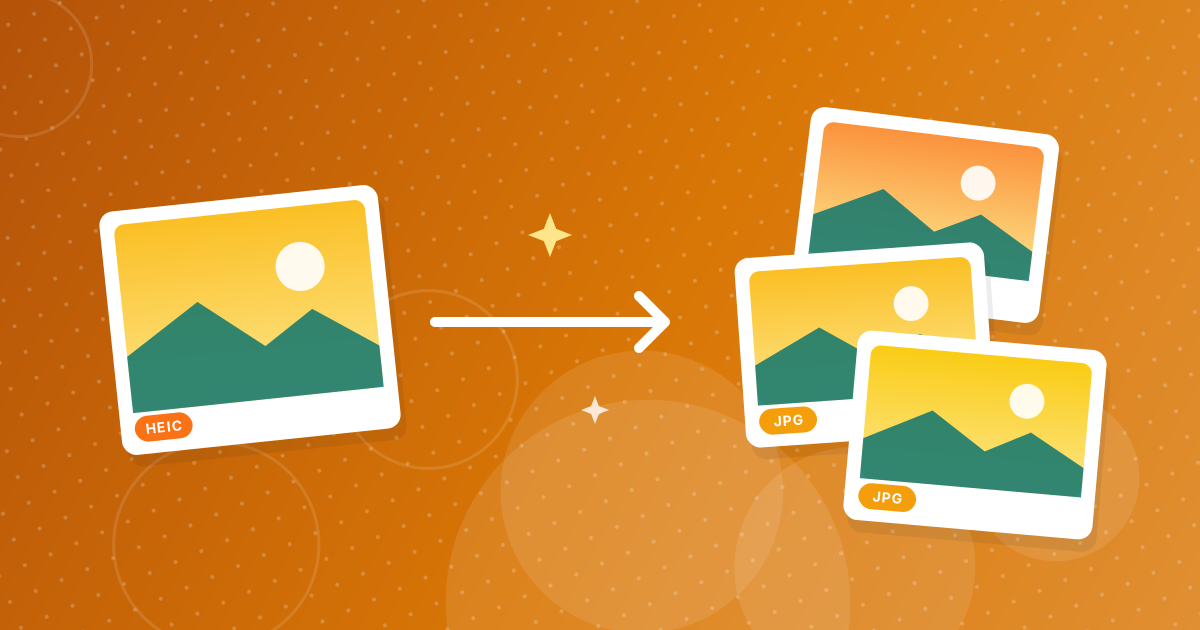
iPhones save photos as HEIC by default, but you can change that. A camera setting makes new photos JPG, a transfer setting converts photos when they move to a computer, and the tool on this site converts the ones you already have.
Menu names vary slightly between iOS versions, so use the paths below as a guide.
On this page
Key takeaways
- Settings, Camera, Formats, Most Compatible saves new photos as JPG.
- Settings, Photos, Transfer to Mac or PC, Automatic converts photos to a compatible format when transferred.
- Existing HEIC photos can be converted in bulk with the HEIC to JPG tool.
- Keep HEIC if storage is tight and your devices all support it.
Setting 1: Save new photos as JPG
- 1
Open Settings and tap Camera.
- 2
Tap Formats.
- 3
Choose Most Compatible. High Efficiency is the HEIC option.
- 4
New photos will be JPG from now on.
Most Compatible files are larger, so expect your storage to fill faster. Some features, such as certain high-resolution or video modes, may need High Efficiency.
Setting 2: Convert when you transfer
Open Settings, tap Photos and scroll to Transfer to Mac or PC. Choose Automatic to have the phone convert photos to a compatible format when you connect it to a computer, or Keep Originals to copy the HEIC files as they are. This leaves your phone library unchanged while giving your computer JPGs.
Convert photos you already have
Copy the HEIC files to your computer or select them from Files on the phone, then drop them into HEIC to JPG. The conversion is local, so pictures are not uploaded. The how-to is in how to convert HEIC to JPG. Uploads that reject HEIC are covered in HEIC photos won't upload.
HEIC or JPG: which should you keep?
| HEIC (High Efficiency) | JPG (Most Compatible) | |
|---|---|---|
| File size | About half | Larger |
| Compatibility | Apple devices and modern systems | Everything |
| Quality | Excellent | Excellent at high quality |
| Best for | Saving space on devices | Sharing, uploads, older software |
A reasonable compromise is to keep HEIC on the phone and convert only what you share. For more on the choice, read HEIC to PNG or JPG.
If you use a Windows PC
Windows can open HEIC when the right extension is installed, and many programs still cannot. If you do not want to change your phone settings, convert photos when you need to share them, or read how to open HEIC photos on Windows for ways to view them without converting.
iPhone JPG settings: FAQ
How do I make my iPhone take JPG photos?
Go to Settings, Camera, Formats and choose Most Compatible.
Will my old photos change?
No. The setting applies to new photos. Convert old ones with HEIC to JPG.
Does Most Compatible reduce quality?
No, but files are larger.
How do I get JPGs on my computer without converting?
Set Transfer to Mac or PC to Automatic in Settings, Photos.
Why can't my computer open HEIC?
Older systems lack the codec. Convert to JPG.
Is HEIC bad?
No. It is efficient, but not supported everywhere.
Can I convert hundreds of photos?
Yes, in batches. Large sets download as a ZIP.
Are my photos uploaded during conversion?
No. Conversion runs in your browser.
Pick compatibility or space
Use Most Compatible if you share a lot, or keep HEIC and convert on demand. Both routes are only a few taps away.