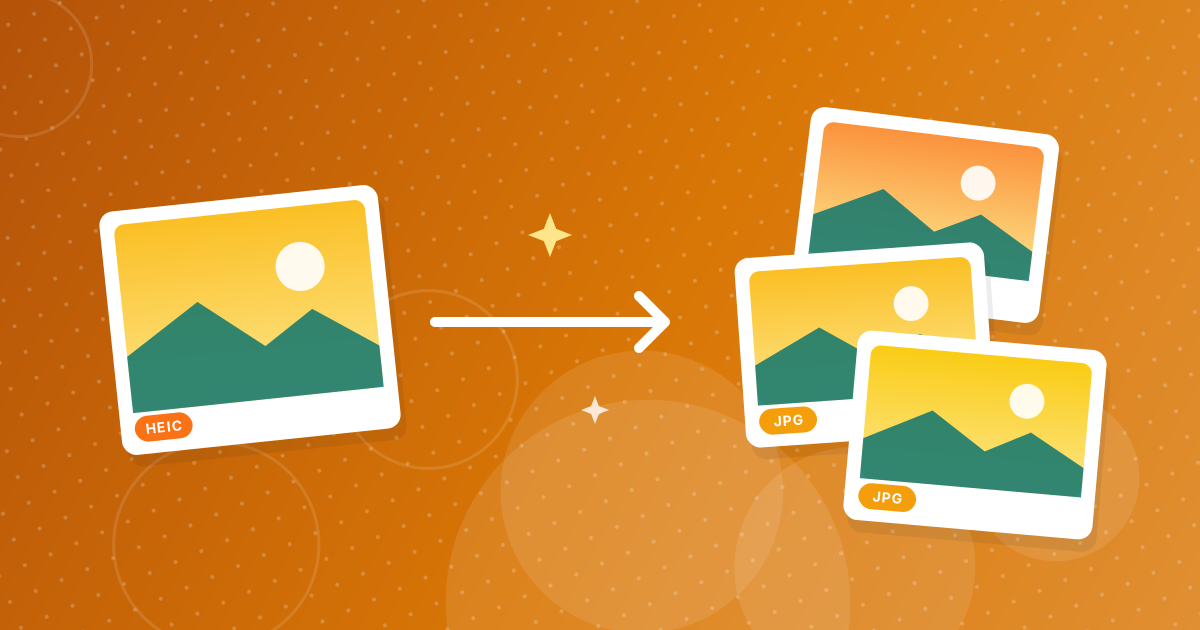
To convert HEIC to JPG, open the HEIC to JPG converter, add your iPhone photos and click convert. You get ordinary JPG files that open on Windows, Android, the web and every editor.
The conversion runs in your browser, so your photos are not uploaded.
On this page
Key takeaways
- HEIC and HEIF files are accepted, including files with .heic or .heif extensions.
- Photos are saved as JPG at 92 percent quality.
- Several photos can be converted together and downloaded as a ZIP.
- Your pictures stay on your device.
How to convert HEIC to JPG in three steps
- 1
Add your photos. Open HEIC to JPG and drag in HEIC or HEIF files from your computer or phone.
- 2
Convert. Click the button. Large batches take a little longer because HEIC decoding is demanding.
- 3
Download. One photo downloads as a JPG. Several come as a ZIP named heic-to-jpg-images.
Why convert at all
iPhones save photos as HEIC by default because the files are about half the size of JPG at similar quality. Many websites, older Windows versions, some Android apps and print kiosks cannot open them. JPG works everywhere. If you need background on opening HEIC without converting, see how to open HEIC photos on Windows.
Quality and size
Photos are re-encoded as JPG at 92 percent quality, which is visually close to the original. The JPG will be larger than the HEIC, roughly double in many cases, because JPG compresses less efficiently. Live Photo video parts are not included, only the still image.
JPG, PNG or PDF?
- JPG: smallest and the most compatible. Best for sharing and uploads.
- PNG: lossless and larger. See HEIC to PNG and HEIC to PNG or JPG.
- PDF: a document of your photos with HEIC to PDF.
Avoiding the conversion next time
You can make the iPhone save JPG in the first place. The steps are in iPhone photos as JPG instead of HEIC. If a conversion fails, see HEIC to JPG not working.
Converting many photos
Select all the HEIC files and drop them in together. They are converted one after another and returned in a single ZIP, named heic-to-jpg-images. HEIC decoding is demanding, so a hundred photos can take a while on a phone. Convert in groups of 10 to 20 if the browser slows down.
Getting the files from your phone
- Connect the iPhone to a computer and copy the originals from the Photos or DCIM folder.
- Use AirDrop or a cloud drive to move files to a computer, keeping the original format.
- On the phone itself, open the tool in the browser and choose files from the Photos library or the Files app.
Metadata such as location and camera details is not carried into the JPG. If you want to see what a photo contained first, EXIF Viewer shows it.
HEIC to JPG: FAQ
How do I convert HEIC to JPG?
Add the HEIC photos to the HEIC to JPG tool, click convert and download the JPGs.
Are my photos uploaded?
No. Conversion happens in your browser.
Does it convert HEIF too?
Yes, .heic and .heif files are accepted.
What quality are the JPGs?
92 percent, which looks nearly identical to the original.
Why is the JPG bigger than the HEIC?
HEIC compresses more efficiently, so the same picture takes more space as JPG.
Can I convert many photos at once?
Yes. They download together as a ZIP.
What about Live Photos?
Only the still image is converted.
Does the JPG keep the photo's metadata?
No. The JPG is a new file without the original camera and location details.
Does it work on Windows and Android?
Yes, in any modern browser.
Photos that open everywhere
Drop in the HEIC files, convert and share the JPGs. Keep the HEIC originals if you want the smallest archive.