To convert a PDF to PNG, open the PDF to PNG converter, add your file, choose a resolution and click convert. Every page becomes a separate PNG image that you can preview and download.
PNG is lossless, so text, tables and line drawings stay sharp. The pages are drawn in your browser, which means the PDF never leaves your device.
On this page
Key takeaways
- Each page of the PDF becomes its own PNG file.
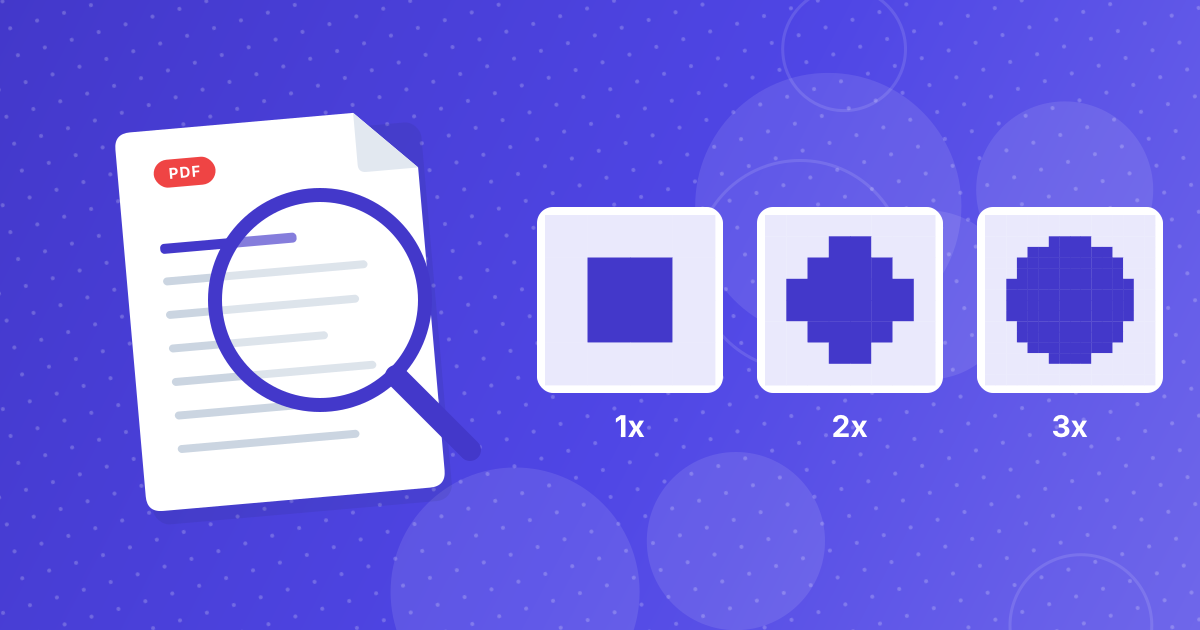
- Three resolution levels (1x, 2x and 3x) control how many pixels each image has.
- Files are named after the PDF with the page number, for example report_page1.png.
- Pages have a white background and are saved without compression loss.
Steps shown in the video
- Click Choose PDF Files and select your PDF
- Your file is listed with its size
- Click Extract Images to turn each page into a PNG
- Click Download All to save every page
How to convert a PDF to PNG in three steps
- 1
Add your PDF. Open the PDF to PNG tool and drag the file in, or click the upload area. The tool reads the file and shows how many pages it has.
- 2
Choose a resolution. Open the settings panel and pick the level that fits your purpose. The default, 2x, works well for documents. The next section explains the options.
- 3
Convert and download. Click convert. A progress bar shows how many pages are done. When it finishes, each page appears as a preview with its own download button, and there is a button to download them all.
Choosing a resolution
The resolution is a multiplier applied to the page size stored in the PDF. Higher multipliers give more pixels and a sharper image, and also a bigger file.
| Option | Image size | Good for |
|---|---|---|
| 1x (lowest) | About 595 × 842 px | Thumbnails and quick previews |
| 2x (default) | About 1190 × 1684 px | Slides, documents and web use |
| 3x (highest) | About 1785 × 2526 px | Zooming into small print and diagrams |
For a longer explanation with file-size expectations, see the PDF to PNG resolution guide.
Downloading the pages
Each page is saved as its own file, named after the PDF with the page number, such as invoice_page1.png and invoice_page2.png. Use the button under a preview to save one page. The download all button saves every page in turn, and your browser may ask for permission to download multiple files the first time.
If only some pages arrive, the guide to saving all PDF pages as PNG explains the usual cause and how to fix it.
When PNG is the right choice
- Text-heavy pages: contracts, reports and slides stay crisp at any zoom level.
- Charts and diagrams: thin lines and flat colors compress very well in PNG.
- Pages you will edit: PNG does not lose quality each time you save it.
- Screenshots of documents: PNG is the format most chat and design tools expect.
For photo-heavy pages where small files matter more than perfect edges, PDF to JPG gives much smaller files. The comparison of PDF to JPG vs PDF to PNG helps you decide.
Converting only some pages
The tool converts every page. If you need only a few, first cut the PDF down with Extract Pages or delete the rest with Remove Pages, then convert the smaller file. It is faster and leaves you with fewer images to sort through.
PDF to PNG: FAQ
How do I convert a PDF to PNG?
Add the PDF to the PDF to PNG tool, choose a resolution, click convert and download the images. Each page becomes one PNG file.
Does the tool convert all pages?
Yes. Every page of the PDF is converted. Extract the pages you want first if you need only some of them.
Is my PDF uploaded to a server?
No. The pages are drawn in your browser, so the file stays on your device.
Does PNG lose quality?
No. PNG is lossless. The sharpness depends on the resolution you choose, not on compression.
What are the PNG files called?
They use the PDF name followed by the page number, for example report_page1.png.
Is the background transparent?
No. Pages are drawn on a white background, as they appear in a PDF viewer.
Which resolution should I use?
2x suits most documents. Use 3x for small print or diagrams you want to zoom into, and 1x for thumbnails.
Can I convert a password-protected PDF?
Remove the password first with Unlock PDF, if you have the right to do so, then convert the unlocked copy.
Can I convert PDF to PNG on my phone?
Yes. It works in any modern mobile browser, though long PDFs at the highest resolution need more memory.
How do I turn the PNGs back into a PDF?
Use PNG to PDF, which puts each image on a page of a new PDF.
From PDF pages to images
Add the file, pick a resolution and download the pages. PNG keeps text and lines sharp, and nothing leaves your browser.