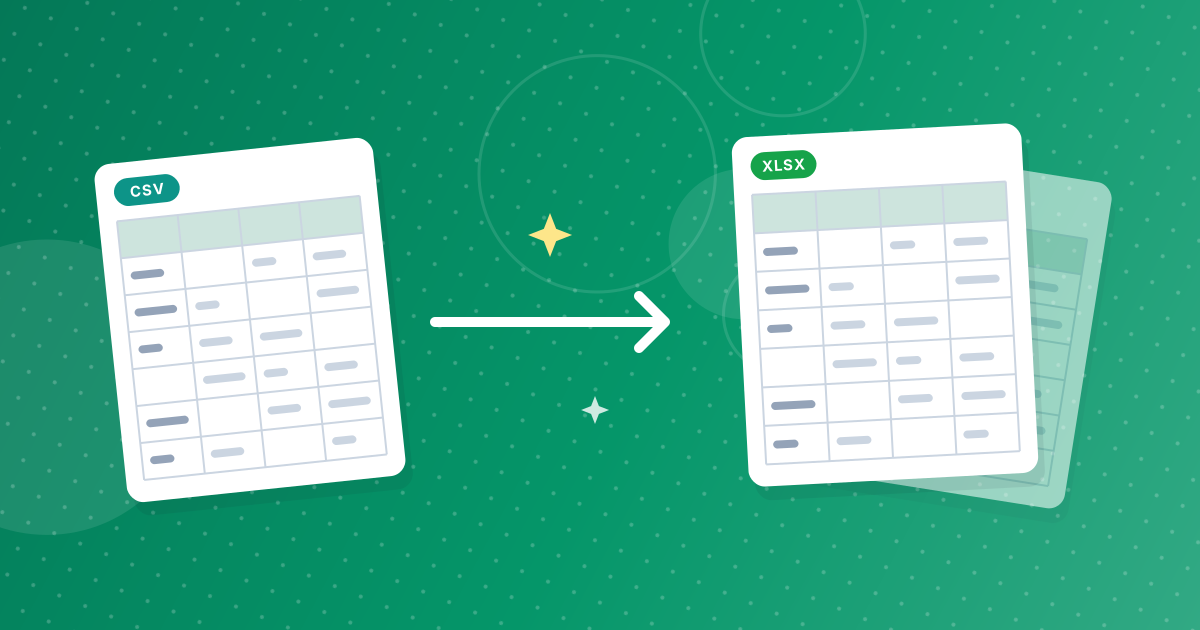
To convert a CSV file to Excel, open the CSV to Excel converter, add your file and download the .xlsx workbook it creates. The converter works out whether your file uses commas, semicolons, tabs or pipes, turns plain numbers into real numbers and keeps codes such as 00742 exactly as you wrote them.
That last detail is why converting beats double-clicking. When Excel opens a CSV directly, it applies its own guesses: leading zeros vanish from ZIP codes, long IDs turn into scientific notation and text can split at the wrong character. This guide covers the three steps, what changes inside your data and how to check the result.
On this page
Key takeaways
- The converter creates one .xlsx workbook per CSV, with the sheet named after the file.
- Plain numbers become numbers; values with leading zeros or more than 15 digits stay as text so nothing is lost.
- Commas, semicolons, tabs and pipes are detected automatically, and .tsv files work too.
- An Excel sheet holds at most 1,048,576 rows and 16,384 columns, so larger CSV files need splitting first.
Steps shown in the video
- Click Choose CSV Files and select your CSV
- Your file is listed with its size
- Click Convert to Excel to create the workbook
- Download your .xlsx file
Why convert a CSV instead of opening it in Excel?
Opening a CSV in Excel makes Excel decide what every value means, and some of those decisions change your data. Converting it first gives you a workbook where each cell already has the right type, so nothing is reinterpreted when you or a colleague opens it.
The most common surprises when you double-click a CSV:
- Leading zeros disappear. The ZIP code 02134 becomes 2134 and the product code 000981 becomes 981.
- Long numbers are rounded. Excel keeps 15 significant digits, so a 16-digit card or tracking number loses its last digit and shows as 4.11111E+15. Microsoft documents this limit in its Excel specifications and limits.
- Everything lands in column A. If your regional settings expect semicolons and the file uses commas, Excel does not split the columns.
- Text turns into dates. Values such as 3-4 or MAR1 can be read as dates.
If you are fighting one of these right now, our guide to fixing a CSV that opens in one column explains each cause in detail.
How to convert CSV to XLSX in three steps
- 1
Add your CSV file. Open the CSV to Excel tool and drag your file onto the upload area, or click to choose it. Both .csv and .tsv files are accepted, and you can add several at once.
- 2
Convert. Click Convert. The tool reads the file in your browser, detects the delimiter, handles quoted fields and sizes each column to fit its content.
- 3
Download the XLSX. Save the workbook. When you convert several files, you get one ZIP archive containing a separate .xlsx for each CSV.
The file is processed on your device, so the data in your CSV is not uploaded to a server. That matters for customer lists, payroll exports and anything else you would rather keep private.
What happens to your data during the conversion?
Each value is converted only when the conversion is safe. Anything that could lose information stays as text, exactly as it appears in the CSV.
| Value in the CSV | Example | Cell in Excel |
|---|---|---|
| Plain number | 1250.5 | Number you can sum and sort |
| Number with leading zeros | 00742 | Text, zeros kept |
| More than 15 digits | 4111111111111111 | Text, every digit kept |
| true or false | TRUE | Logical TRUE or FALSE |
| Date | 2026-10-09 | Text, exactly as written |
| Quoted text with commas or line breaks | "Paris, France" | One cell, quotes removed |
| Empty field | Empty cell |
The worksheet takes the name of your file, shortened to Excel's 31-character limit, and each column is widened to fit its longest values so the sheet is readable straight away.
Which CSV files does the converter accept?
Any delimited text file that follows the usual CSV rules described in RFC 4180 will convert cleanly. In practice that covers exports from banks, shops, CRMs, Google Sheets and databases.
- Delimiters: comma, semicolon, tab or pipe, detected from the first lines of the file.
- Quoted fields: values wrapped in double quotes can contain commas, quotes and line breaks.
- Encoding: UTF-8, with or without a byte-order mark. Files saved in an older encoding such as Windows-1252 may show replacement characters for accented letters; re-save them as UTF-8 first.
- Blank lines: completely empty rows are skipped.
How big can the CSV be?
An Excel worksheet holds at most 1,048,576 rows and 16,384 columns. If your CSV is larger, the converter stops with a clear message instead of cutting off data. Split the file into parts and convert each one, or keep very large datasets in a database or a format such as JSON.
Below that limit, speed depends on your device. Files with a few hundred thousand rows convert in seconds on a modern laptop and take longer on an older phone.
Check the workbook before you share it
- The row count in Excel matches the number of data lines in the CSV.
- IDs, phone numbers and ZIP codes still show their leading zeros.
- Columns line up: no values have shifted into the wrong column.
- Accented names and currency symbols display correctly.
- Number columns are right-aligned, which means Excel treats them as numbers.
Need the reverse later? Excel to CSV turns a workbook back into a CSV. To decide which format to keep, read CSV vs XLSX.
CSV to Excel: frequently asked questions
How do I convert a CSV file to Excel without losing leading zeros?
Use a converter that keeps values with leading zeros as text, such as the CSV to Excel tool. Opening the CSV directly in Excel removes the zeros because Excel reads those values as numbers.
Can I convert a semicolon-separated CSV to Excel?
Yes. The converter detects commas, semicolons, tabs and pipes automatically, so semicolon-separated exports from European versions of Excel convert correctly.
Does the converter upload my CSV?
No. The file is read and converted in your browser, so the data stays on your device.
Can I convert several CSV files at once?
Yes. Add them together and you get a ZIP file with one Excel workbook for each CSV.
What is the maximum CSV size?
One worksheet holds up to 1,048,576 rows and 16,384 columns. Larger files need to be split before converting.
A cleaner way to get CSV data into Excel
Converting a CSV to XLSX takes three clicks and avoids the guesses Excel makes when it opens a CSV directly. Your zeros, long IDs and text stay intact, and the workbook opens the same way on every computer.