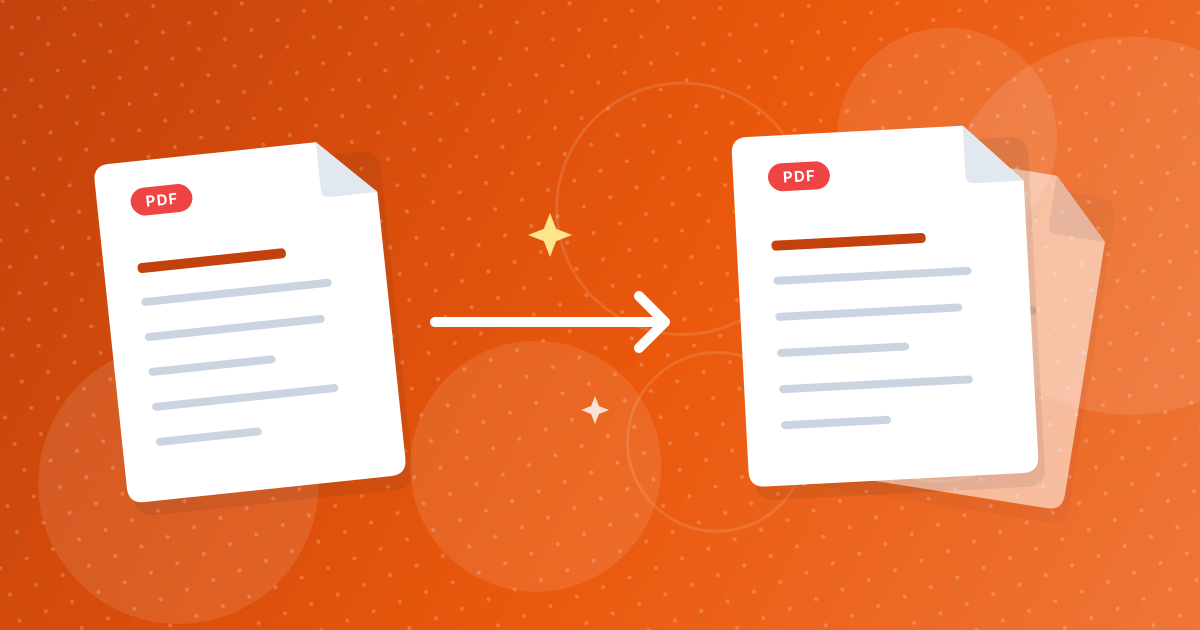
To send only some pages of a PDF, extract them into a new file with Extract Pages and attach that file. The recipient sees only what you choose, and the attachment is smaller.
This guide covers the workflow and a few privacy checks.
On this page
Key takeaways
- Extract the pages into a new PDF before attaching.
- Check the result: page ranges count physical pages.
- Smaller attachments get through email limits.
- Confidential pages stay out of the email.
Steps shown in the video
- Click Choose PDF Files and select your PDF
- Your file is listed with its size
- Type the pages you want, for example 2-3
- Click Extract pages
- Download a new PDF with just those pages
Step by step
- 1
Note the pages you need by their position in the PDF viewer.
- 2
Extract them with Extract Pages, for example 12-15.
- 3
Open the new PDF and check every page.
- 4
Attach it to your email or upload.
Privacy checks
- No pages with personal data slipped in.
- The file name does not reveal more than intended.
- If the remaining pages contain sensitive text, consider adding a password with Protect PDF.
Still too large?
Scanned pages can be heavy. Shrink the extract with Compress PDF. For the range syntax, see PDF page ranges explained.
Doing it on a phone
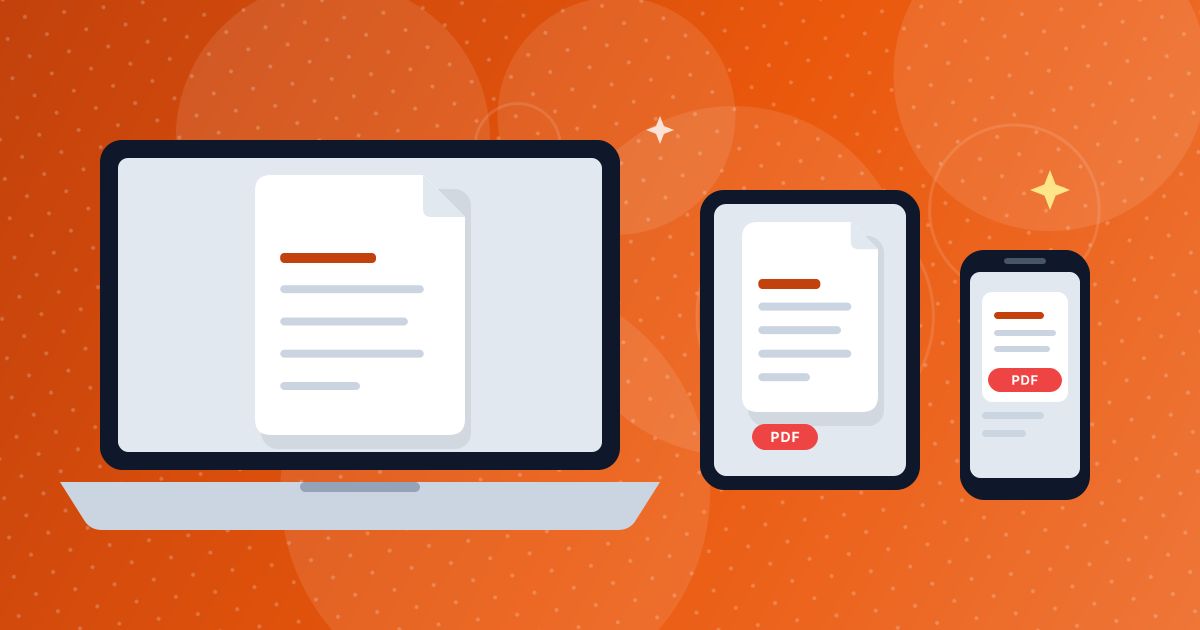
Open Extract Pages in your mobile browser, pick the PDF from your files or email download, type the pages and save the new file. On iPhone it goes to the Files app; on Android to Downloads. From there, attach it to an email or share it to a messaging app.
Other ways to share part of a document
- A screenshot of one page: quick, but the text is no longer selectable and quality depends on your screen.
- Images of pages: PDF to JPG works well for chats and social posts.
- An extracted PDF: keeps text selectable and quality intact, best for documents.
Page numbers to type are explained in PDF page ranges explained.
Everyday examples
- One month from a bank statement: extract the relevant pages for a landlord or accountant.
- A single invoice from a combined export: send the customer only their invoice.
- The signature page of a contract: extract it to confirm signing without re-sending the whole document.
- A chapter of a manual: share the section a colleague needs.
In each case, the recipient gets exactly what they need, the attachment stays small, and information meant for others stays private. Extracted pages keep their original quality and selectable text, unlike screenshots.
Name the new file clearly
Give the extract a descriptive name, such as statement-march-2026.pdf, so the recipient knows what it contains without opening it.
Sending part of a PDF: FAQ
How do I email only one page of a PDF?
Extract that page into a new PDF and attach it.
Will the extracted pages look the same?
Yes. They are copied unchanged.
How do I make the attachment smaller?
Extract fewer pages and compress the result.
Can I password-protect the extract?
Yes, with a PDF protection tool.
Is my PDF uploaded?
No. Extraction runs in your browser.
Can I extract pages on my phone?
Yes, in a mobile browser; the new PDF is saved to your files.
Is a screenshot good enough?
For a quick look, yes. For documents, an extracted PDF keeps quality and selectable text.
Can I send non-consecutive pages?
Yes. Type them separated by commas, for example 2, 5, 9-11, and they are extracted into one PDF.
Will the recipient know pages were removed?
The new PDF simply contains the selected pages. Printed page numbers on those pages, if any, stay as they were.
Can I combine pages from two PDFs before sending?
Yes. Extract the pages you need from each file, then join them with Merge PDF or arrange them with Reorder PDF.
Share less, send faster
Extracting just the pages you need keeps emails small and keeps the rest of the document private.