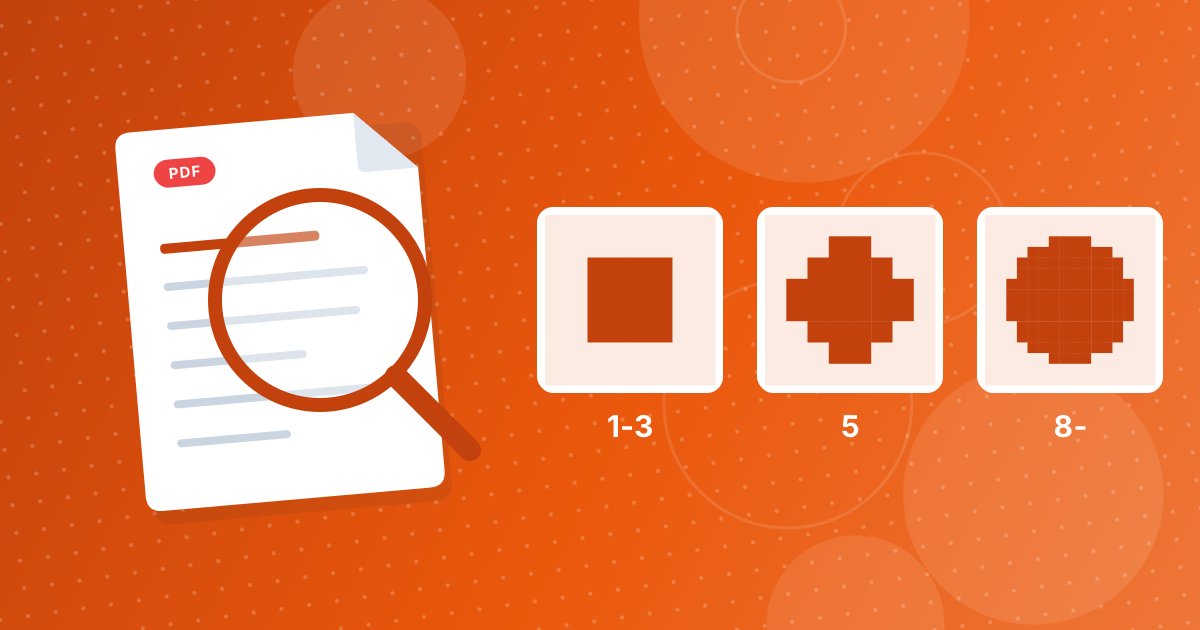
A page range lists the pages you want, separated by commas: single numbers (5), ranges with a hyphen (1-3) and open-ended ranges (8- for page 8 to the end, -4 for the first four pages). The same style works in Extract Pages and in most print dialogs.
Here are the rules, examples and the most common mistakes.
On this page
Key takeaways
- Separate items with commas; spaces are optional.
- Use a hyphen for ranges: 3-7.
- Leave one side open: 8- or -4.
- "last" or "end" means the final page.
Steps shown in the video
- Click Choose PDF Files and select your PDF
- Your file is listed with its size
- Type the pages you want, for example 2-3
- Click Extract pages
- Download a new PDF with just those pages
The rules
| Form | Example | Meaning |
|---|---|---|
| Single page | 5 | Page 5 |
| Range | 3-7 | Pages 3 through 7 |
| Open end | 8- | Page 8 to the last page |
| Open start | -4 | Pages 1 through 4 |
| Last page | last | The final page |
| Combination | 1, 3-5, last | Pages 1, 3, 4, 5 and the final page |
Duplicates are ignored and the pages are kept in document order.
Common mistakes
- A page beyond the end: in a 10-page PDF, 12 is outside the document and produces an error naming the valid range.
- Words or letters: only numbers, hyphens, commas and the words last or end are understood.
- Printed vs physical numbers: the range counts physical pages from 1, which may differ from page numbers printed in the document, for example when the cover is unnumbered.
Use it
Try it in Extract Pages; the steps are in how to extract pages from a PDF.
Page ranges in print dialogs
Most print dialogs, in browsers, Word and PDF readers, accept the same style of range: commas between items and hyphens for ranges. Open-ended ranges and the word "last" are less universal, so for printing, type full ranges such as 8-24 to be safe. In Extract Pages, all forms work.
More examples
| Goal | Range |
|---|---|
| First page only | 1 |
| Everything except the first page | 2- |
| First five and last page | 1-5, last |
| Two separate chapters | 10-18, 40-52 |
For deleting rather than keeping pages, see Remove Pages vs Extract Pages.
Duplicates and order
If you list a page twice, for example 1-5, 3, it is included only once. Pages are always kept in their original document order, so typing 10, 2 gives you page 2 followed by page 10, not the other way round. To change the order of pages, extract them first and then rearrange them with Reorder PDF, which lets you drag thumbnails into any sequence.
This behaviour makes ranges safe to type quickly: overlapping ranges such as 1-10, 5-15 simply give you pages 1 to 15 without duplicates.
Page ranges: FAQ
How do I write a page range?
Use commas between items and hyphens for ranges, such as 1-3, 5, 8-.
How do I select to the end?
Leave the end open, as in 8-, or use last.
Why do I get an out-of-range error?
One of the numbers is larger than the number of pages.
Do page ranges use printed page numbers?
No, they count physical pages from the first page.
Does order matter?
Pages are kept in document order.
How do I select everything except the first page?
Type 2- to select page 2 to the end.
Do print dialogs accept open-ended ranges?
Not always. Type full ranges when printing.
Can I use the word end instead of last?
Yes. Both mean the final page.
What does 8- mean?
Page 8 through the last page of the document.
Can I select odd or even pages?
Not with a single keyword in Extract Pages. List the pages you need, such as 1, 3, 5, 7, or use Rotate PDF, which offers odd and even selections for rotation.
Commas, hyphens, done
With commas, hyphens and open ends you can select any combination of pages in one line.