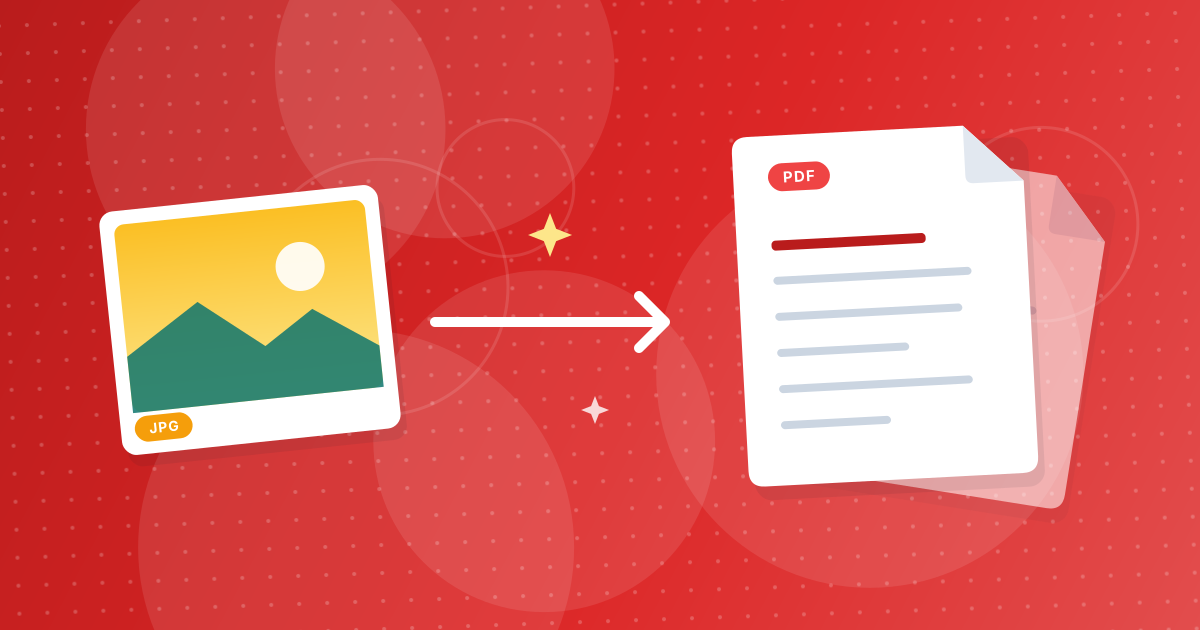
A phone camera is good enough to scan most paperwork if you control three things: light, angle and sharpness. After that, a short cleanup and the JPG to PDF tool turn the photos into one tidy file.
Follow the steps below for readable results every time.
On this page
Key takeaways
- Even light and a camera held parallel to the page matter more than resolution.
- Crop and straighten each photo before building the PDF.
- Resize photos to about 1920 pixels on the long side to keep the PDF small.
- Check that each page is readable at normal size before you send the file.
Step 1: Take clear photos
- Place the page flat on a plain, darker surface.
- Use daylight or an evenly lit room. Avoid shadows from your hand or phone.
- Hold the phone parallel to the paper to avoid skewed edges.
- Fill the frame with the page, but keep all four corners visible.
- Tap to focus and hold still. Turn flash off to avoid glare.
- Take one photo per page, in reading order.
Step 2: Fix each photo
- Crop out the table and shadows with Crop Image, which also brings the page closer to the shape of the A4 PDF page.
- Straighten tilted pages. Rotate Image accepts any angle. See straightening a tilted photo.
- Turn sideways photos upright before conversion.
Step 3: Keep the size reasonable
Phone photos are large, often 12 megapixels. An A4 page needs far less. At 1920 pixels on the long side, a page is about 160 pixels per inch across its long edge, which is clear on screen and fine for reading. Use Resize Image with the 1920 option, then Image Compressor if needed. A 20-page document usually lands at a few megabytes instead of 80.
Step 4: Build the PDF
- 1
Open JPG to PDF and add the photos.
- 2
Use the arrows to put pages in order. Name files with leading zeros (page-01) to keep order when selecting a folder.
- 3
Convert, download and open the PDF to check every page.
Step 5: Optional extras
- Search the text: photos have no text layer. Read them with Image to Text, keeping in mind that it sends the image to an OCR service.
- Protect it: add a password with Protect PDF if the document is private.
- Combine with other files: use Merge PDF.
What a photo-based PDF cannot do
The PDF holds pictures, so you cannot select or search the text in it, and glare or shadows stay part of the page. For official submissions, check whether the recipient needs a particular resolution. The basic conversion steps are in how to convert JPG to PDF.
Phone photos to PDF: FAQ
How do I scan a document with my phone?
Photograph each page in even light, then combine the photos with JPG to PDF.
What resolution do I need?
About 1920 pixels on the long side is enough for clear reading on screen.
Why do my photos have shadows?
Your hand or phone blocks the light. Use a window light and shoot from slightly above.
Can I make the text searchable?
Not in the PDF. You can read the text with Image to Text separately.
How do I keep the PDF small?
Resize the photos before building the PDF.
Do I need an app?
No. The camera plus a browser is enough.
What if a page is crooked?
Straighten it with Rotate Image and crop the edges.
Is the PDF uploaded anywhere?
No. JPG to PDF works in your browser.
Should I use the flash?
Turn it off. Flash creates glare on glossy paper. Use window light or a lamp placed at the side.
Good photos make a good PDF
Light, angle, crop, resize, then convert. Five minutes of care saves rejected uploads and unreadable pages.