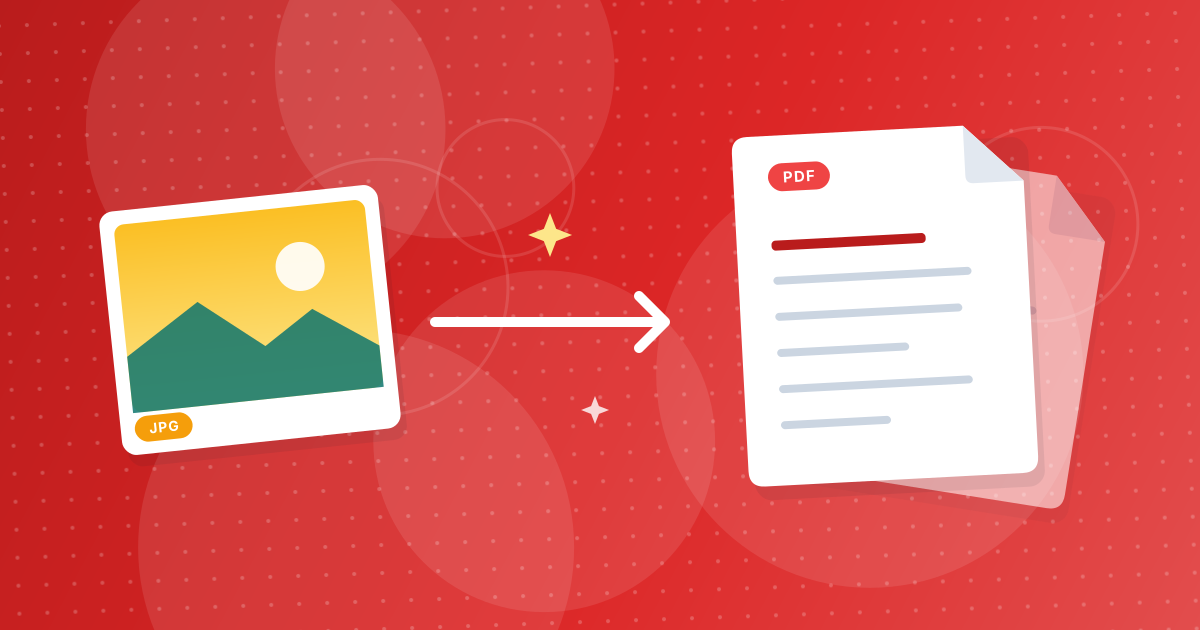
To convert JPG to PDF, open the JPG to PDF converter, add your photos, put them in order and click convert. Every photo becomes one page of a single PDF that you can download straight away.
The PDF is built in your browser, so the photos are not uploaded. It suits a single photo as much as a stack of 50 pages from a phone.
On this page
Key takeaways
- Each JPG becomes its own page, and all pages are saved in one PDF.
- The page order follows the list, and you can move photos up or down.
- Pages are A4 portrait, with the photo scaled to fit and centered, never stretched or cropped.
- JPG photos stay JPG inside the PDF, so the file is about as large as the photos together.
How to convert JPG to PDF in three steps
- 1
Add your JPG files. Open the JPG to PDF tool and drop in your photos or scans.
- 2
Set the order. The first file in the list becomes page 1. Use the arrows to move a file, or remove one you added by mistake.
- 3
Convert and download. Click convert and save the PDF. Open it and flip through to check the order.
How the pages are laid out
Every page is A4 in portrait orientation. The photo is scaled to the largest size that fits, keeps its proportions and sits in the middle of the page. A landscape photo therefore has white space above and below it. The exact numbers for common photo shapes are in PNG to PDF page size, margins and orientation, which uses the same layout.
Quality and file size
JPG photos are placed into the PDF as they are, with no extra compression and no loss. The PDF will be about as large as the combined photos. A phone photo is often 3 to 5 MB, so 20 photos make a PDF of 60 to 100 MB. To reduce it, shrink the photos first with Resize Image or Image Compressor, or compress the finished PDF with Compress PDF.
Common uses
- Photographed documents: contracts, forms and receipts as a single file. See how to photograph documents for PDF.
- Applications and uploads that accept only PDF.
- Albums and portfolios: one image per page, in order.
- Homework and notes photographed page by page.
Other formats and next steps
For PNG screenshots use PNG to PDF, and for iPhone photos in HEIC use HEIC to PDF. If something goes wrong, read JPG to PDF sideways photos or wrong order.
Tips for a better PDF
- Rename photos with numbers (01, 02, 03) so that a folder selection keeps the order.
- Turn sideways photos upright before converting.
- Resize very large photos to keep the PDF easy to send.
- Open the PDF and check every page before sharing it.
JPG to PDF: FAQ
How do I convert a JPG to a PDF?
Add the JPG to the JPG to PDF tool, click convert and download the PDF.
Can I put several JPGs into one PDF?
Yes. Each photo becomes a page, in the order of the list.
What page size does the PDF use?
A4 portrait. Photos are scaled to fit without distortion.
Are my photos uploaded?
No. The PDF is created in your browser.
Does the PDF reduce photo quality?
No. JPG photos are placed as they are.
Why is my PDF so large?
It contains your full-size photos. Resize or compress them first, or compress the PDF.
Can I reorder the photos?
Yes. Use the arrows next to each file before converting.
Can I convert on my phone?
Yes, in any modern mobile browser.
Does it accept JPEG files?
Yes. JPG and JPEG are the same format.
Photos in, one PDF out
Add the photos, set the order and download. They keep their quality, and nothing leaves your device.