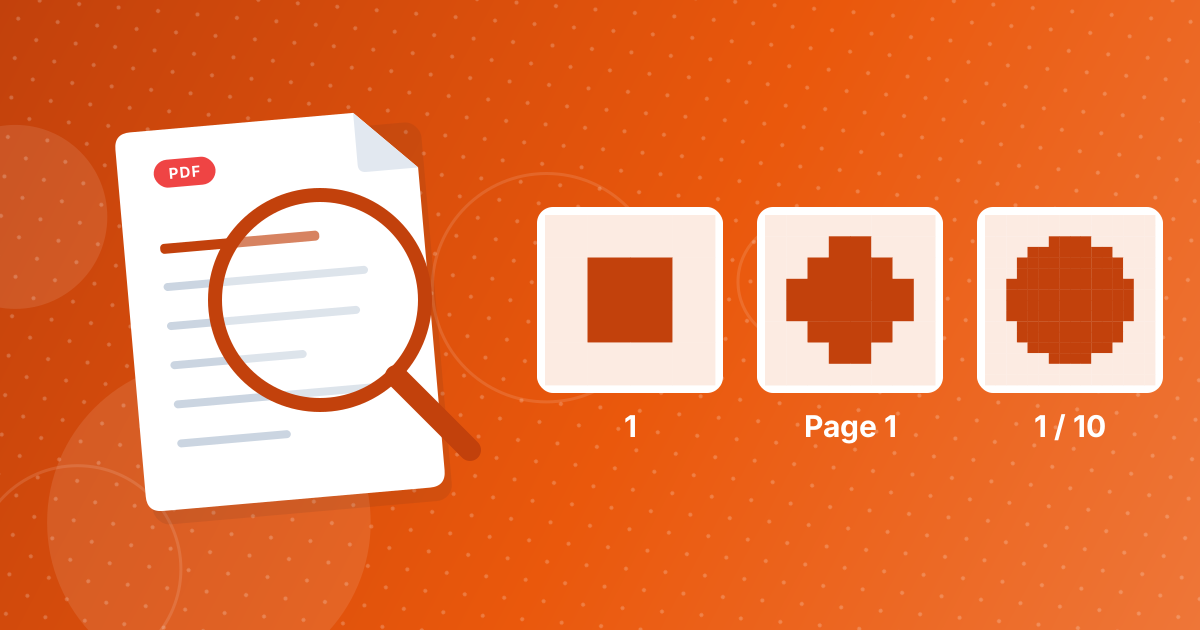
Three settings decide what number appears on each page: the starting number, whether the first page is skipped, and the format. If you skip the first page, numbering begins on page 2 with your starting number; the 1 / N format counts only the numbered pages. These choices cover most layouts, from reports with covers to documents that continue another file.
Here are worked examples.
On this page
Key takeaways
- Start number: the number printed on the first numbered page.
- Skip first page: the cover gets no number; numbering starts on the second page.
- 1 / N: N is the last number printed, so it reflects skipped pages and the start number.
- Font size and position are cosmetic and do not change the count.
Steps shown in the video
- Click Choose PDF Files and select your PDF
- Your file is listed with its size
- Pick a number style, here 1 / 5
- Click Add page numbers
- Download your numbered PDF
Worked examples (10-page PDF)
| Settings | Page 1 | Page 2 | Page 10 |
|---|---|---|---|
| Start 1 | 1 | 2 | 10 |
| Start 1, skip first | (none) | 1 | 9 |
| Start 1, skip first, 1 / N | (none) | 1 / 9 | 9 / 9 |
| Start 21 (continues a 20-page file) | 21 | 22 | 30 |
| Start 1, Page format | Page 1 | Page 2 | Page 10 |
Choosing a position
- Bottom centre: the neutral default for reports and letters.
- Bottom right: common in business documents and easy to spot when flipping.
- Top right: used in some academic and legal styles.
Numbers are placed relative to how the page displays, so rotated landscape pages are numbered in the right corner too.
Try it
Apply these in Add Page Numbers; the steps are in how to add page numbers to a PDF. Combining several files first? Use Merge PDF, then number once.
Starting from zero
The start number can be 0. That suits documents where the first page is an unnumbered cover that you still want counted, or technical documents whose conventions start at zero. In most cases, skipping the first page and starting at 1 gives a cleaner result.
Different numbering for different parts
If a document needs separate numbering for parts, such as an appendix starting again at 1, number each part separately and combine them afterwards:
- 1
Split the document into parts with Extract Pages.
- 2
Number each part with its own settings.
- 3
Combine the parts again with Merge PDF.
Mixed portrait and landscape pages
Documents that mix portrait and landscape pages, such as reports with wide tables, are numbered according to how each page is displayed. A bottom-centre number sits at the bottom of the landscape page as you read it, not along its side, so numbering stays consistent for readers.
Numbering options: FAQ
How do I start page numbering on page 2?
Tick skip first page. The second page then shows your starting number.
How do I continue numbering from another document?
Set the starting number to one more than the last page of the other document.
What does 1 / N show?
The current number and the last number printed.
Are landscape pages handled?
Yes, numbers follow the displayed orientation.
Can I use Roman numerals?
No. The formats are 1, Page 1 and 1 / N.
Can page numbering start at 0?
Yes, the start number can be set to 0.
How do I restart numbering for an appendix?
Number the main part and the appendix separately, then merge them.
Can I put numbers in the top corner?
Yes. Choose top-left or top-right as the position.
Which font size should I use?
The default of 11 points suits most documents; use 9 to 10 for a subtle number.
Can numbers be bold?
The numbers use a regular weight; choose a larger size to make them stand out.
Three settings, any layout
Combine the start number, the skip-cover option and the format to match your document's conventions.