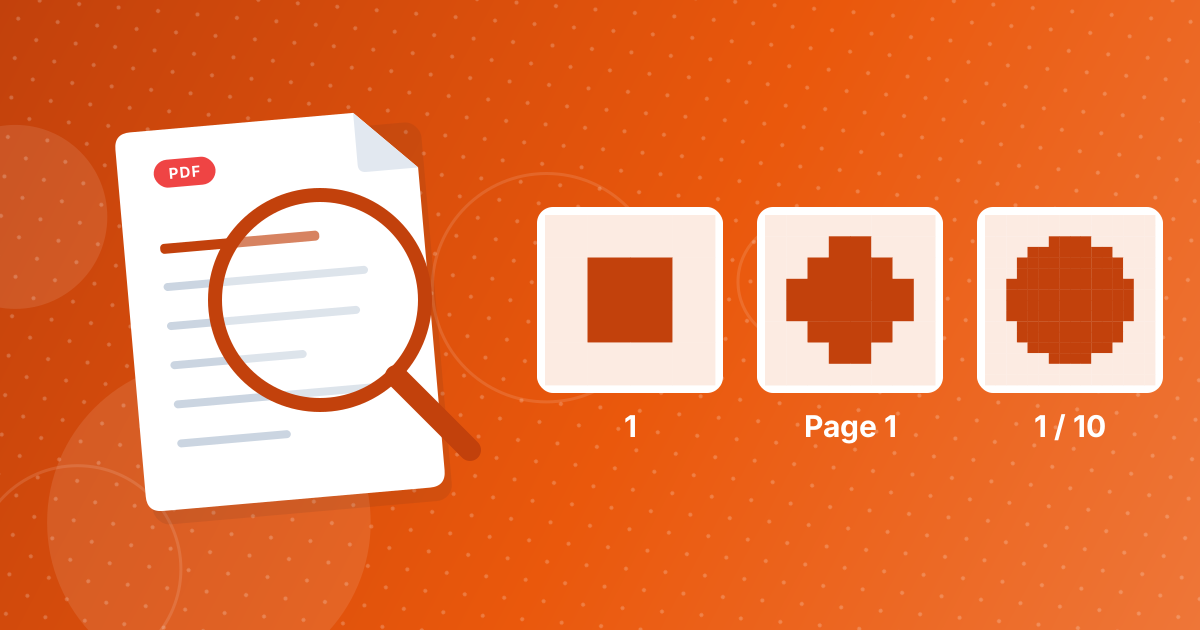
To add page numbers to a PDF, add the file to Add Page Numbers, choose where the numbers go and how they look, and download the numbered PDF. You can pick one of six positions, three formats (1, Page 1 or 1 / 10), a starting number and a font size, and leave the first page unnumbered.
Numbers are added on top of the existing pages, so nothing else changes.
On this page
Key takeaways
- Six positions: top or bottom, left, centre or right.
- Formats: 1, Page 1, or 1 / 10.
- Choose the starting number and font size (6 to 48 points).
- Option to skip numbering the first page.
Steps shown in the video
- Click Choose PDF Files and select your PDF
- Your file is listed with its size
- Pick a number style, here 1 / 5
- Click Add page numbers
- Download your numbered PDF
How to add page numbers in three steps
- 1
Add your PDF. Open Add Page Numbers and add the file.
- 2
Choose the style. The defaults are bottom centre, plain numbers, starting at 1, 11 points.
- 3
Download. Save the numbered PDF.
The options
| Setting | Choices |
|---|---|
| Position | Top or bottom; left, centre or right |
| Format | 1 · Page 1 · 1 / 10 |
| Start at | Any number from 0 |
| Font size | 6 to 48 points |
| Skip first page | Leave a cover page unnumbered |
How these combine, for example to start at 1 after a cover, is in PDF page numbering options explained.
When page numbers help
Reports, theses, contracts and merged application packs are much easier to discuss when every page has a number. See numbering reports, theses and merged documents. Combine files first with Merge PDF, then add numbers.
Choosing a font size
The default of 11 points matches typical body text and reads well on A4 and Letter pages. Use 9 to 10 points for a subtle number in reports, and 14 points or more for slides exported to PDF, which are often viewed on screens from a distance. The full range runs from 6 to 48 points.
Check for clashes with existing content
Numbers are placed close to the page edge. If your pages already have footers, logos or page numbers at the bottom, choose a top position instead, or a corner the content does not use. Scroll through the result once to make sure no number covers text, especially on pages with full-bleed images.
How the start number and the skip-cover option combine is explained in PDF page numbering options.
Numbering happens in your browser
The numbers are drawn onto the pages on your own device; the PDF is not uploaded. Everything else on the page, including text, links and images, stays exactly as it was, with the number added as a small text layer in the chosen position.
Adding page numbers: FAQ
How do I add page numbers to a PDF?
Add it to Add Page Numbers, choose the style and download.
Can I skip the cover page?
Yes, tick the option to skip the first page.
Can I start from a number other than 1?
Yes, set any starting number.
Can I show '1 of 10'?
Yes, the 1 / 10 format shows the page and the total.
Is my PDF uploaded?
No. Numbering happens in your browser.
What font is used for page numbers?
A standard sans-serif font (Helvetica) that every PDF reader displays.
Can I number only some pages?
You can skip the first page. For other selections, extract the pages, number them, then recombine.
Can I remove page numbers later?
Keep the original PDF; the numbered version is a new file.
Can I add page numbers to a scanned PDF?
Yes. Numbers are added on top of the page images, just like on digital PDFs.
Every page, findable
Choose a position and format, skip the cover if needed, and every page gets a clear number.