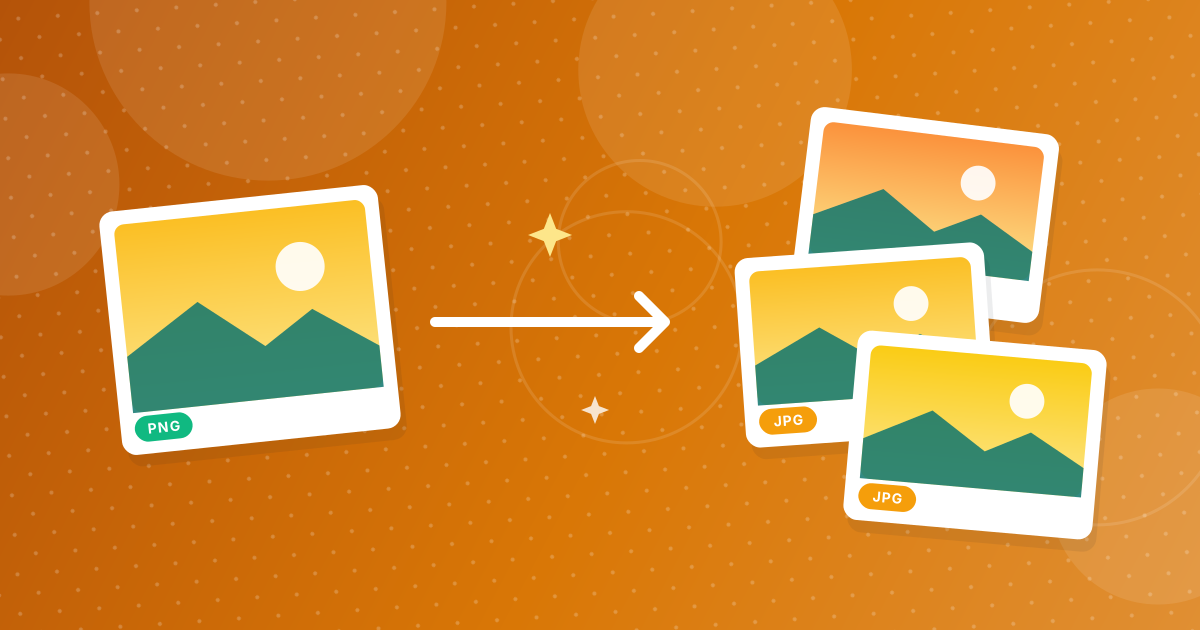
To convert PNG to JPG, open the PNG to JPG converter, add your images and click convert. You get a JPG for each PNG, usually with a much smaller file size, and transparent areas become white.
It all happens in your browser, so your images are not uploaded.
On this page
Key takeaways
- JPG files are usually much smaller than PNG files, especially for photos.
- JPG has no transparency, so transparent areas are filled with white.
- Images are saved at 92 percent quality, which is hard to tell from the original at normal size.
- Several files come together as a ZIP.
How to convert PNG to JPG in three steps
- 1
Add your PNG files. Open PNG to JPG and drag the images in. Only PNG files are accepted.
- 2
Convert. Click the convert button. Each image is drawn on a white background and saved as JPG.
- 3
Download. A single image downloads directly. Several come as a ZIP named png-to-jpg-images.
How much smaller will the file be?
It depends on what the image shows. Photographs often shrink to a fraction of their PNG size, because PNG stores every pixel exactly and JPG simplifies fine detail. Screenshots, logos and graphics with flat colors shrink less, and sometimes they are no smaller at all.
| PNG content | Size change | Look |
|---|---|---|
| Photograph | Much smaller | Almost identical |
| Screenshot with text | Moderately smaller | Faint speckles around letters |
| Logo or icon with flat colors | Small or none | Slight fuzz at edges |
| Transparent graphic | Depends | White background replaces transparency |
Transparent areas become white
JPG cannot store transparency. The tool paints a white background first, so see-through areas turn white. If you need a different background color or must keep transparency, stay with PNG or use PNG to WebP. More on this in PNG to JPG: transparent background turns white.
When converting makes sense
- Uploading to a site with a file-size limit.
- Sending photos by email or chat.
- Reducing storage for a large set of images.
- Using a tool or platform that accepts only JPG.
For a detailed comparison, read PNG vs JPG. To shrink the result more, use Image Compressor.
Checking the result
- Open the JPG and compare it with the PNG at 100 percent zoom.
- Look closely at text, thin lines and edges, where JPG artifacts appear first.
- Compare the file sizes in your file manager to confirm that the conversion saved space.
- Keep the PNG if the image has transparency or sharp text that you may need again.
Converting a whole folder
Select all the PNG files and drop them in together. The tool converts them one after another and returns a single ZIP, named png-to-jpg-images, with the same file names and a .jpg extension. This is the quickest way to prepare a set of screenshots or product pictures for a site that accepts only JPG. Files that are not PNG are ignored.
PNG to JPG: FAQ
How do I convert PNG to JPG?
Add the PNG to the PNG to JPG tool, click convert and download the JPG.
Does converting reduce quality?
Slightly. JPG is lossy, but 92 percent quality is hard to distinguish from the original for photos.
What happens to a transparent background?
It becomes white.
Is my image uploaded?
No. Conversion happens in your browser.
Can I convert several PNG files at once?
Yes. They are downloaded together as a ZIP.
Will the file be smaller?
Usually, especially for photographs.
What are the output files called?
The same name as the PNG with a .jpg extension.
Can I convert JPG back to PNG?
Yes, with JPG to PNG, but the detail lost in JPG does not come back.
Smaller files in one click
Convert the PNG, check the result and keep the original if it has transparency you may need again.