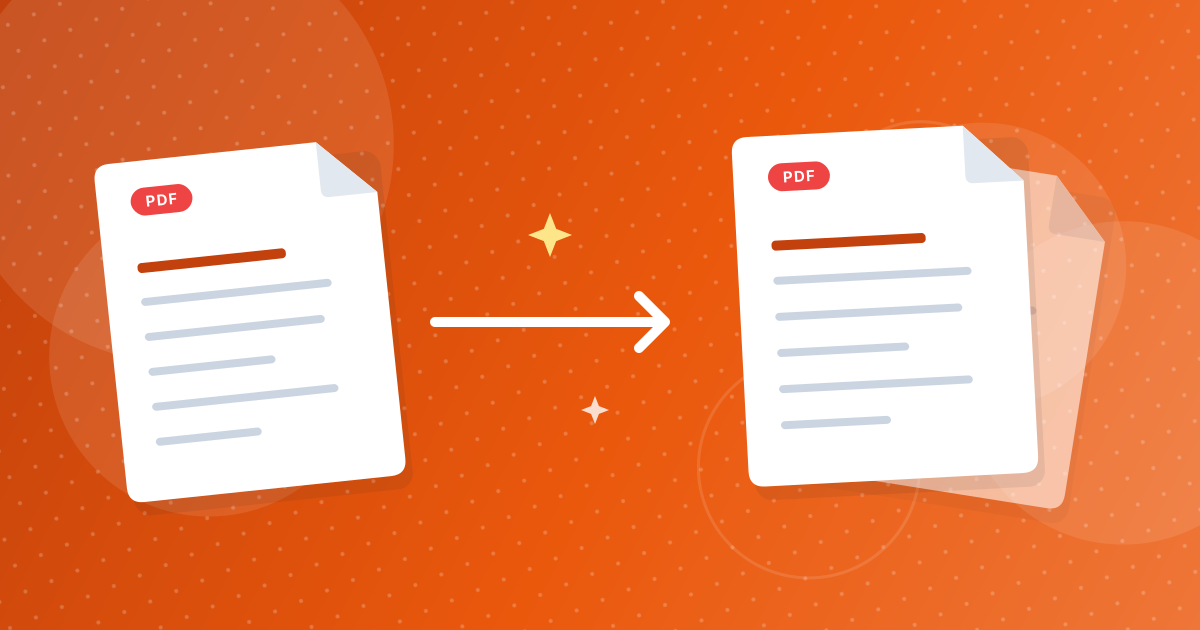
To compress a PDF, open the Compress PDF tool, add your file, choose light, balanced or strong compression and download the smaller version. The work happens in your browser, so the document is not uploaded anywhere.
The tool rebuilds each page as a picture at a lower resolution. That shrinks scanned and image-heavy files a lot, with one trade-off you should know about: the text is no longer selectable.
On this page
Key takeaways
- Three levels trade quality for size: light (best quality), balanced and strong (smallest file).
- Each page is saved as a JPEG picture at a reduced resolution, and the page size stays the same.
- Text inside the compressed PDF can no longer be selected or searched.
- If the result would not be smaller than the original, the tool tells you instead of giving you a bigger file.
How to compress a PDF in three steps
- 1
Add your PDF. Open the Compress PDF tool and drag the file in. You can add several files and compress them together.
- 2
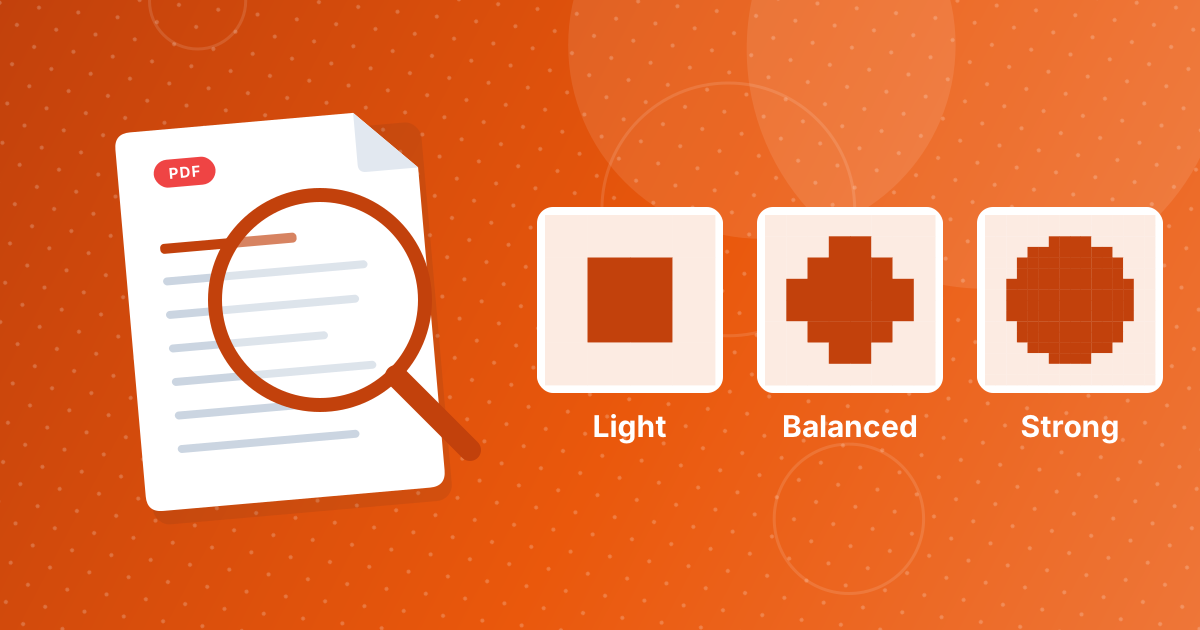
Choose a level. Light keeps the most quality, strong gives the smallest file, and balanced sits between them.
- 3
Compress and download. The new file is named like the original with -compressed added. Several files come as a ZIP.
What the tool does to your PDF
Many PDFs are large because they contain high-resolution images, often scanned pages. The tool draws every page at a lower resolution, saves it as a JPEG and builds a new PDF from those pictures. The pages keep their original physical size, so an A4 page is still A4.
| Level | Page resolution | JPEG quality | Best for |
|---|---|---|---|
| Light | 144 pixels per inch | 80 percent | Documents you will read closely or print |
| Balanced | 108 pixels per inch | 60 percent | Everyday sharing and email |
| Strong | 72 pixels per inch | 40 percent | The smallest possible file, for screen reading |
A full guide to choosing between them is in light, balanced or strong compression.
The trade-off: text becomes part of the picture
Because pages are saved as images, you cannot select, copy or search the text in the compressed file, and links stop working. Keep the original for anything that needs live text, and use the compressed copy for sending or viewing.
If the tool says the file is already small
A short text-only PDF can be tiny already, and turning it into pictures would make it larger. The tool then shows a message and does not give you a file that is bigger than the one you started with. Try a stronger level, or read why a PDF does not get smaller.
Other ways to reduce a PDF
- Remove pages you do not need with Remove Pages.
- Send only some pages by cutting them out with Extract Pages.
- Split a long document into parts with Split PDF.
Compress PDF: FAQ
How do I compress a PDF?
Add the PDF to the Compress PDF tool, choose a level, click compress and download the smaller file.
Is my PDF uploaded to a server?
No. The compression runs in your browser, so the document stays on your device.
Which level should I choose?
Balanced for most files. Use light when you need sharper pages and strong when size matters most.
Will I still be able to select text?
No. Pages are saved as pictures, so the text is no longer selectable or searchable.
Does the page size change?
No. The pages keep their original physical size.
Why did I get a message that the file is already small?
Compressing it would not make it smaller, so the tool does not produce a larger file.
Can I compress several PDFs at once?
Yes. They are compressed together and downloaded as a ZIP.
Does compression add a watermark?
No. The output has no watermark.
Can I compress a password-protected PDF?
Unlock it first with Unlock PDF if you have the password, then compress the unlocked copy.
Smaller files, original untouched
Pick a level, compress and send the lighter copy. Keep the original if you need selectable text.