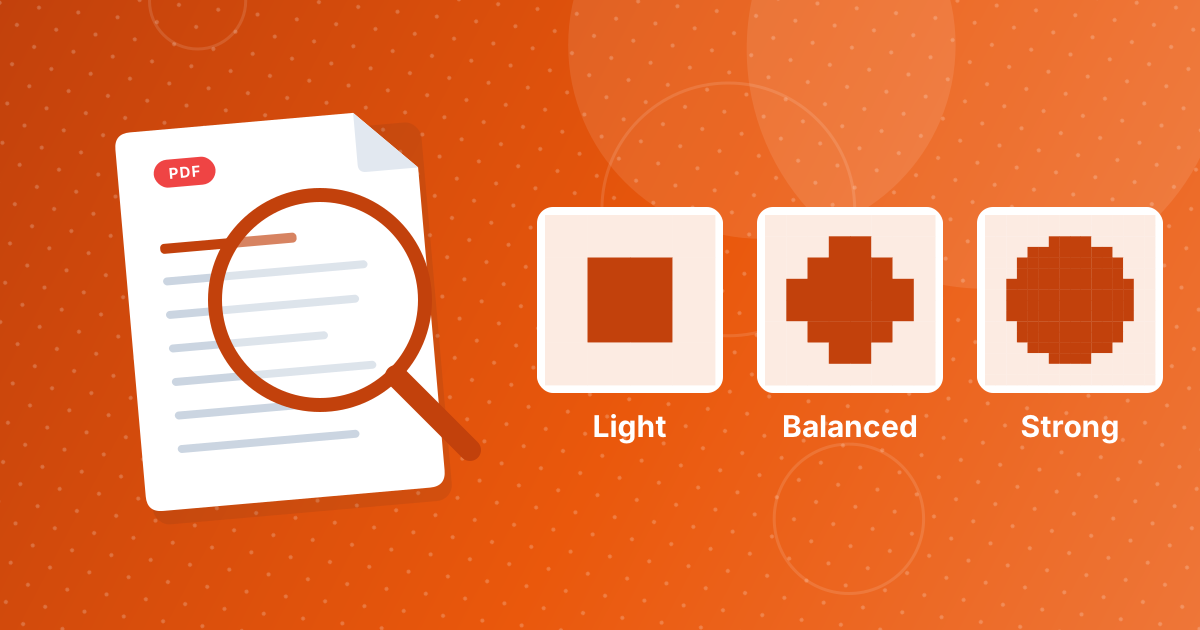
The Compress PDF tool has three levels. Light draws each page at 144 pixels per inch and saves it at 80 percent JPEG quality. Balanced uses 108 pixels per inch and 60 percent. Strong uses 72 pixels per inch and 40 percent.
Lower numbers mean smaller files and softer pages. This guide shows what that looks like and how to choose.
On this page
Key takeaways
- Resolution and JPEG quality both drop as you move from light to strong.
- Light is the safe choice for documents you will print or read closely.
- Balanced fits email attachments and everyday sharing.
- Strong is for the smallest file when text only needs to be readable on a screen.
What each level changes
Two settings decide the result: how many pixels each page gets, and how hard the JPEG compression squeezes them. Both are fixed for each level, so you only have one choice to make.
| Level | Pixels per inch | A4 page size in pixels | JPEG quality |
|---|---|---|---|
| Light | 144 | About 1190 × 1684 | 80 percent |
| Balanced | 108 | About 893 × 1263 | 60 percent |
| Strong | 72 | About 595 × 842 | 40 percent |
How small text looks
Body text is the first thing to suffer. At 72 pixels per inch, a letter in 11 point text is only about 8 pixels tall, which is readable on a phone but looks rough when zoomed or printed. At 144 pixels per inch the same letter is about 16 pixels tall, and edges stay clean.
Low JPEG quality adds faint speckles around dark letters on white paper. Light and balanced keep these almost invisible at normal viewing size.
Which level for which job
| Job | Level | Why |
|---|---|---|
| Contract or form you will print | Light | Sharp text at paper size |
| Email attachment | Balanced | Small and still easy to read |
| Scanned pages at high resolution | Balanced or strong | Scans hold far more pixels than a screen needs |
| Slide deck sent for review | Balanced | Diagrams stay clear |
| Archive copy for reading on a phone | Strong | Smallest size, readable on a small screen |
Scans shrink the most
A page scanned at 300 pixels per inch holds about 2480 by 3508 pixels. Even the light level reduces that to about a third of the pixels, so scanned PDFs often shrink dramatically. A PDF that is mostly live text and vector graphics already stores its content compactly, so converting it to pictures gains little and can even make it larger.
A quick way to decide
- Compress at balanced and open the result at normal zoom.
- If the text looks soft, repeat from the original at light.
- If the file is still too big, repeat at strong and check that the smallest text is still legible.
Always start again from the original file. Compressing an already compressed PDF stacks quality loss for no benefit.
When no level is enough
Cut the page count instead: Remove Pages deletes the ones you do not need, and Split PDF divides a long document into parts that fit under an attachment limit. The basic steps are in how to compress a PDF online.
PDF compression levels: FAQ
What is the difference between light, balanced and strong?
Resolution and JPEG quality. Light is 144 pixels per inch at 80 percent, balanced is 108 at 60 percent, and strong is 72 at 40 percent.
Which level keeps the best quality?
Light.
Which level gives the smallest file?
Strong.
Is compression reversible?
No. Detail that is removed cannot be recovered, so keep the original.
Why do scanned PDFs shrink more than text PDFs?
Scans contain large images, while text PDFs store letters compactly. Turning a text PDF into pictures often gains little.
Will the page size change?
No. Only the pixels inside each page change.
What level is best for printing?
Light, or skip compression and print the original.
Can I compress a PDF twice?
You can, but each pass loses more quality. Start again from the original with a different level.
Start at balanced
Balanced works for most files. Go lighter for print, stronger for size, and always keep the original.