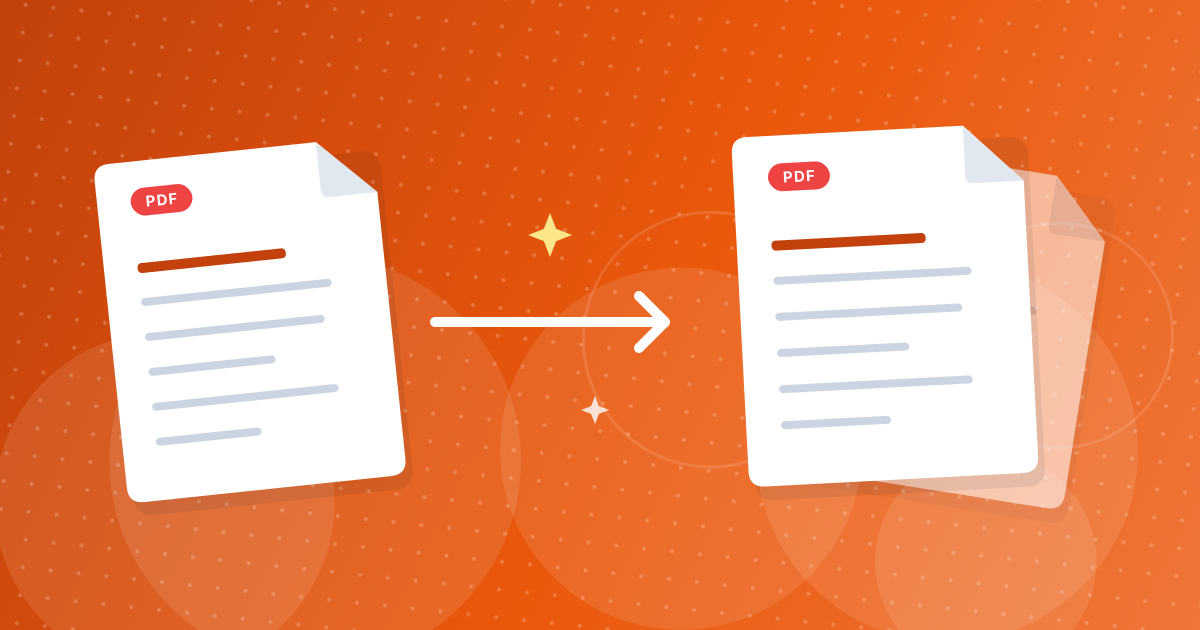
To merge PDF files, open the Merge PDF tool, add the files, arrange them, and download the combined document. You can also add JPG and PNG images, which become pages of their own.
The merge happens in your browser. The files are not uploaded, and the result is a single PDF named after the number of files you combined.
On this page
Key takeaways
- Add PDFs and JPG or PNG images, up to 100 MB per file.
- Files are merged in the order they appear, and you can insert a file at any position.
- You can rotate pages and delete files before merging.
- The result is one PDF called merged-document with the number of files in its name.
Steps shown in the video
- Click Choose Files and select the PDFs you want to combine
- Each file appears as a card, in the order it will be merged
- Click Finish when the order looks right
- Click Download to get one merged PDF
How to merge PDFs in three steps
- 1
Add your files. Open the Merge PDF tool and drop in two or more PDFs, or choose them from your device. Images in JPG or PNG format work too.
- 2
Arrange them. Each file appears as a card. Hover between two cards and click the plus button to insert another file at that exact spot. Select cards to delete them, or rotate them.
- 3
Merge and download. Click the finish button and then download. The file is named merged-document-N-files.pdf, where N is how many files you combined.
Controlling the order
Files are merged in the order the cards appear. New files added with the drop zone go to the end. A file added with a plus button goes right after the card where you clicked. There is no dragging, so plan the order as you add files. For fine control over individual pages afterwards, use Reorder PDF or Organize PDF.
More ways to control the order and rotation are covered in merge order, rotation and inserting files.
Adding images
A JPG or PNG image becomes a page whose size matches the picture. Other image formats such as WebP, HEIC or GIF are not added to the merged file. Convert them first with WebP to JPG or HEIC to JPG, or build a tidy A4 PDF from photos with JPG to PDF and merge that.
Rotating and removing
- Rotate: the rotate buttons turn the selected cards, or every card when none is selected, by 90 degrees.
- Delete: select the cards you no longer want and use the delete button.
- Start over: the start over button on the last screen clears everything.
After merging
A merged document is often larger than you want. Reduce it with Compress PDF, add page numbers with Add Page Numbers, or cut it into parts again with Split PDF. If a file will not merge, see merge PDF problems and fixes.
Tips for a tidy merged file
- Name files with numbers (01, 02, 03) before selecting them together, so they arrive in the right order.
- Open each source file once to confirm that it is the right version before merging.
- Delete cards you added by mistake before finishing, since the merged file includes everything shown.
- Open the merged PDF and scroll through it to check page order and orientation.
Merge PDF: FAQ
How do I merge PDF files into one?
Add the files to the Merge PDF tool, arrange them, click finish and download the combined PDF.
Is my PDF uploaded to a server?
No. The files are combined in your browser.
Can I merge images with PDFs?
Yes, JPG and PNG images. Each image becomes a page.
How do I change the order?
Insert files at the position you want with the plus buttons. You can also reorder pages after merging with Reorder PDF.
Is there a size limit?
The tool is set up for files up to 100 MB each. Very large merges depend on your device memory.
Can I merge password-protected PDFs?
Unlock them first with Unlock PDF, then merge the unlocked copies.
Can I rotate pages before merging?
Yes. Use the rotate buttons on the cards.
What is the merged file called?
merged-document with the number of files, for example merged-document-3-files.pdf.
Does merging reduce quality?
No. PDF pages are copied as they are.
One file instead of many
Add the files, put them in order and download. Page content is copied unchanged, so quality stays the same.